
Attendance deployment
Time and Attendance Systems for Small Businesses: Shared Terminal or Mobile Clock-In?
Compare time and attendance systems for small businesses by work location, employee access and daily administration before choosing shared or mobile clock-in.
Before you choose
Key takeaways.
- Choose a recording point around where each group actually starts and finishes work.
- A shared terminal, a mobile option and a mixed deployment create different daily support responsibilities.
- Building entry and attendance clock-in need separate meanings, even when one device serves both workflows.
Choose the recording point around the working day
Time and attendance systems for small businesses should match where employees actually begin and finish work. A shared terminal can suit people who regularly pass one workplace. A mobile option may suit staff who start elsewhere. A combination can suit a mixed team, provided employees know which method to use and managers can explain the resulting record.
Begin with a simple question for each employee group: where is a clock-in practical without sending someone to an unrelated location or requiring equipment they cannot use? The answer is more useful than treating every small business as a smaller version of the same deployment.
This comparison addresses collection methods. Mobile clock-in means an option offered by the attendance application being evaluated; it is not a claim about a particular Feocey app, location service or remote-punch feature. The software, hardware and integration scope should be confirmed together for the project.
A shared terminal needs a deliberate place in the routine
A fixed-site team has a clear reason to evaluate a shared terminal: employees can use a workplace-owned interaction point instead of relying on individual phones. Place it on a normal arrival route, with clear instructions and enough room to pause. Avoid making employees cross a loading area or join a reception queue simply to record attendance.
For rotating crews, observe an actual changeover before deciding that one device is enough. Look for people waiting, retrying an unclear action or blocking others from approaching. Those observations help determine the position and number of recording points. A screen size or identification demonstration alone does not establish the practical capacity of the proposed installation.
The shared arrangement also needs a named local contact. Someone must notice a damaged mounting, an obscured camera, confusing screen feedback or a credential problem. Provide employees with a short route for reporting an issue rather than leaving them to repeat the same action until a supervisor happens to arrive.
A mobile option moves some administration to individual devices
Mobile clock-in can avoid an unnecessary trip to the office for a technician who starts at a customer location. Before choosing it, identify the permitted device, supported software versions, account setup and the person responsible for assistance. A policy that assumes every employee owns a suitable phone leaves a practical gap in the deployment.
Ask the application supplier to demonstrate the actual sign-in and clock-in sequence on a representative device. Check what an employee sees after recording an action, what happens if access to the app is unavailable and how an alternative method is authorized. If location information is proposed, review its purpose, configuration and employee-facing explanation separately; do not infer it from the word mobile.
Compare the deployment against actual operating conditions
Use the following conditions to discuss a preferred arrangement with the software team and integrator. These are illustrative deployment choices, not fixed product bundles. Each choice still needs confirmation against the supplied application, workforce policy and available support.
| Operating condition | Arrangement to evaluate | Decision to resolve before ordering |
|---|---|---|
| Most employees report to one office or workshop | Shared workplace terminal | Position it on the normal route and assign a local support contact. |
| Several crews arrive together | One or more shared recording points | Observe the queue and employee instructions during a representative changeover. |
| Employees begin at customer or field locations | Supported mobile or other remote recording method | Confirm device access, account support and an approved alternative. |
| Office staff and field staff work differently | Mixed collection methods | Define the permitted method for each group and how exceptions are authorized. |
| Some employees cannot use the proposed phone option | Workplace-owned alternative or supervised procedure | Provide a usable path without silently excluding those employees. |
Use one small-business example to expose unnecessary steps
Consider an illustrative company with office employees, workshop crews and service technicians. Office and workshop staff normally report to the same building, while technicians sometimes begin at a customer site. This is a planning example, not a Feocey customer case or a claim that the company has purchased a particular solution.
The company could evaluate a shared terminal for the people who report to the building and a supported mobile method for field starts. It should also decide what a technician does on an office day. Letting people choose whichever method seems easiest, without an agreed rule, can leave a manager unsure which action was intended.
Write the ordinary route for each group in plain language. Then test a changed assignment, a person without a usable phone and someone who needs the approved credential alternative. The goal is to see whether the deployment removes unnecessary steps while preserving a record that employees and supervisors can recognize.
Keep door access separate and give every method an owner
Opening a building door is not automatically the start of paid work, and a clock-out is not automatically evidence that someone left the premises. A person may enter for a meeting or return for an item without starting another work period. If one terminal supports both workflows, ask the application team to show how employees distinguish the actions and how the records remain identifiable.
A mixed deployment should have one understandable operating procedure rather than unrelated instructions for each device. Agree the following responsibilities before the pilot:
- Who gives employees access to each permitted recording method and explains when to use it?
- Who supports a workplace terminal, and who assists with the selected mobile application?
- What approved procedure applies when an employee cannot complete the ordinary action?
- Who reviews an ambiguous action and records the explanation before attendance is finalized?
Evaluate FCV4907 within the selected deployment
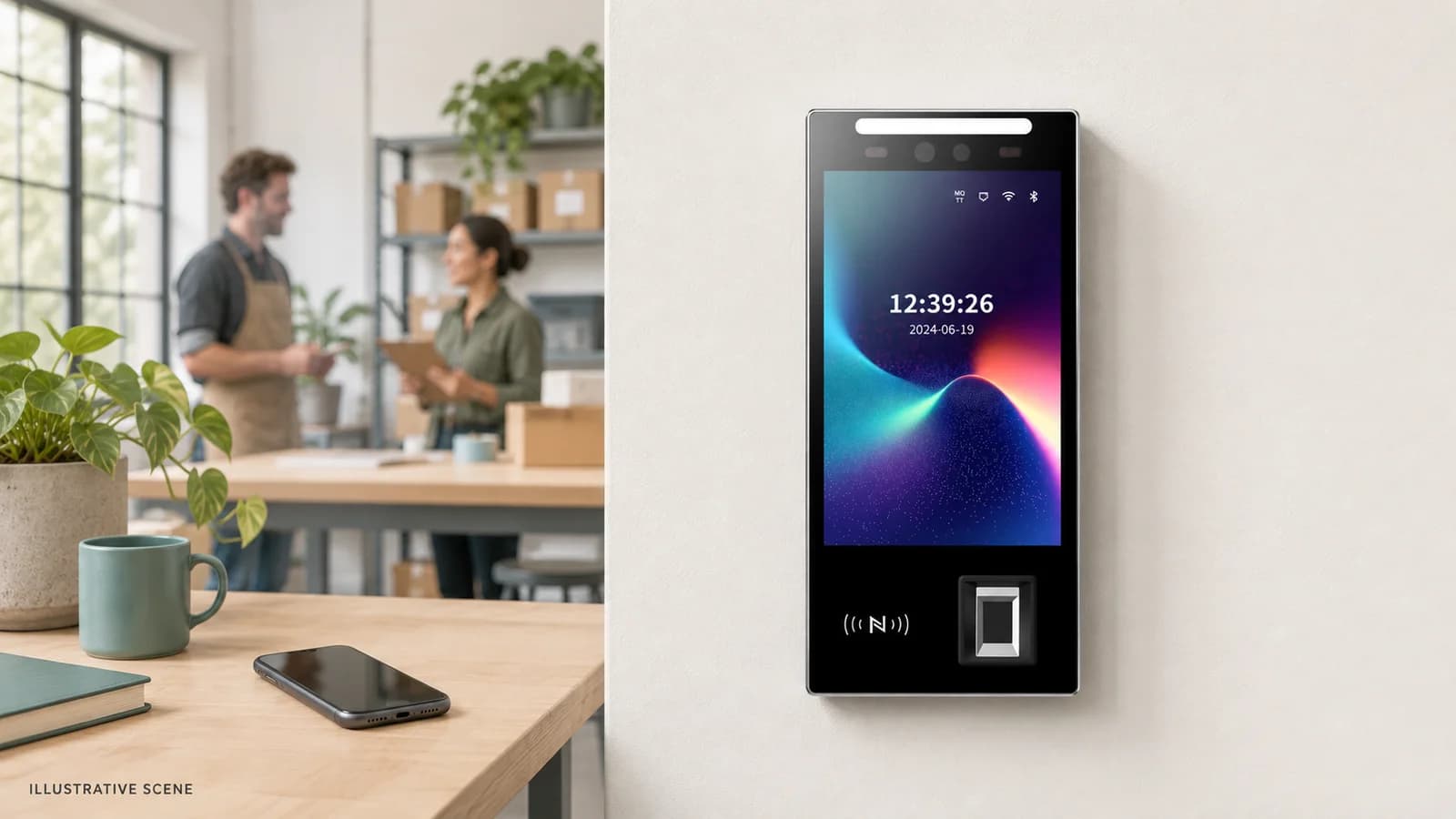
An FCV4907 evaluation can address the shared-terminal part of the plan. The confirmed product material describes an 8-inch portrait touch display, fingerprint input and configured access or attendance interactions. Check the sample's credential modules, mounting and application behavior using its manual and matching documents. Confirm the fingerprint capacity for the supplied configuration in the project proposal and sample acceptance record.
Use the integration route to discuss the receiving application and exact firmware. For the broader collection-to-HR process, refer to the attendance handover guide. Deployment choice does not establish a connector, a mobile service or payroll functionality.
Send a short description of who works at the building, who starts elsewhere, the expected arrival pattern and the proposed fallback with your FCV4907 project inquiry. Ask Feocey to assess the relevant device, application or wider solution scope against that routine. A representative trial can then show whether the arrangement works for the people who must use it every day.
Source references
FCV4907 user manual — confirm the supplied configuration ↗Put the guide to work
Find the reference for your model.
Compare each device with your requirements. Confirm configuration and compatibility for the complete installation.
FCV4907 →
Face authentication terminal
Ask about FCV4907 ↗