Face Terminals

FCV5005

8-inch face authentication terminal

An 8-inch interface. Your access experience.

Give employees, members and visitors a clear point of entry. FCV5005 combines a Linux touch terminal with configurable credentials, mounting and DejaOS application development.

  • 8-inch touch display
  • Linux / DejaOS
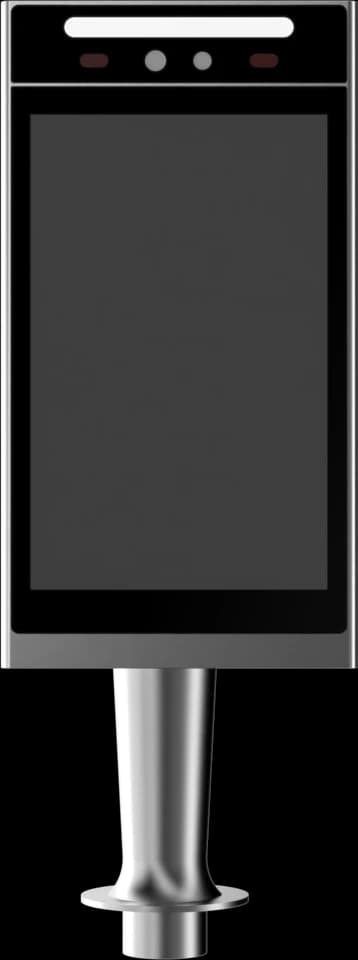
  • Wall or pedestal
At a glance
8-inchHuman-facing display
Application platform
LinuxMatch firmware to your project
Design focus
Your device experienceSelected configuration

THE FCV5005 EXPERIENCE

Make the point of entry part of your service.

A terminal can do more than display a recognition result. FCV5005 combines an 8-inch portrait touch screen with a Linux platform, so teams can design a member, visitor or employee interaction around the way their service works.

Explore the product manual
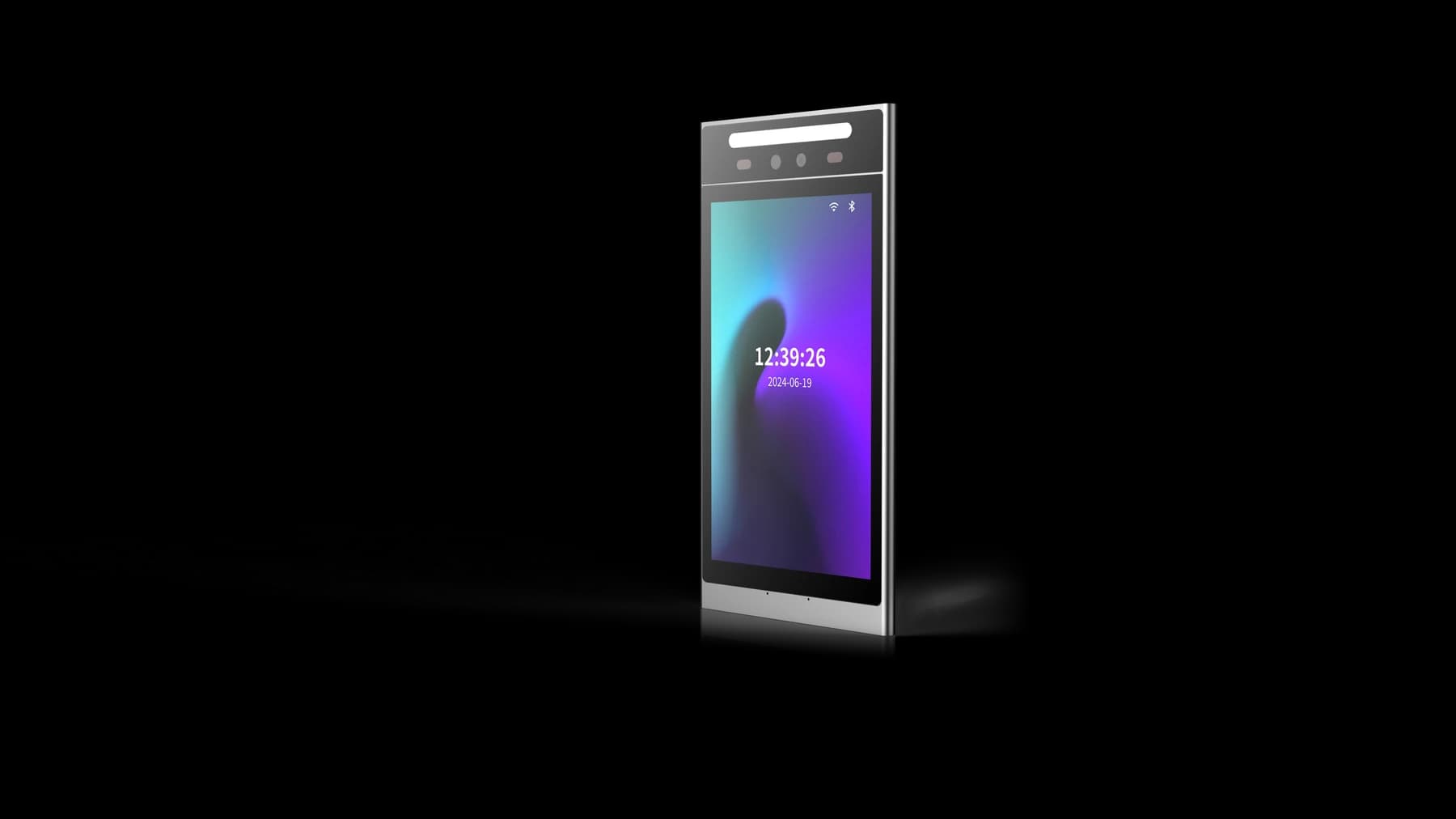
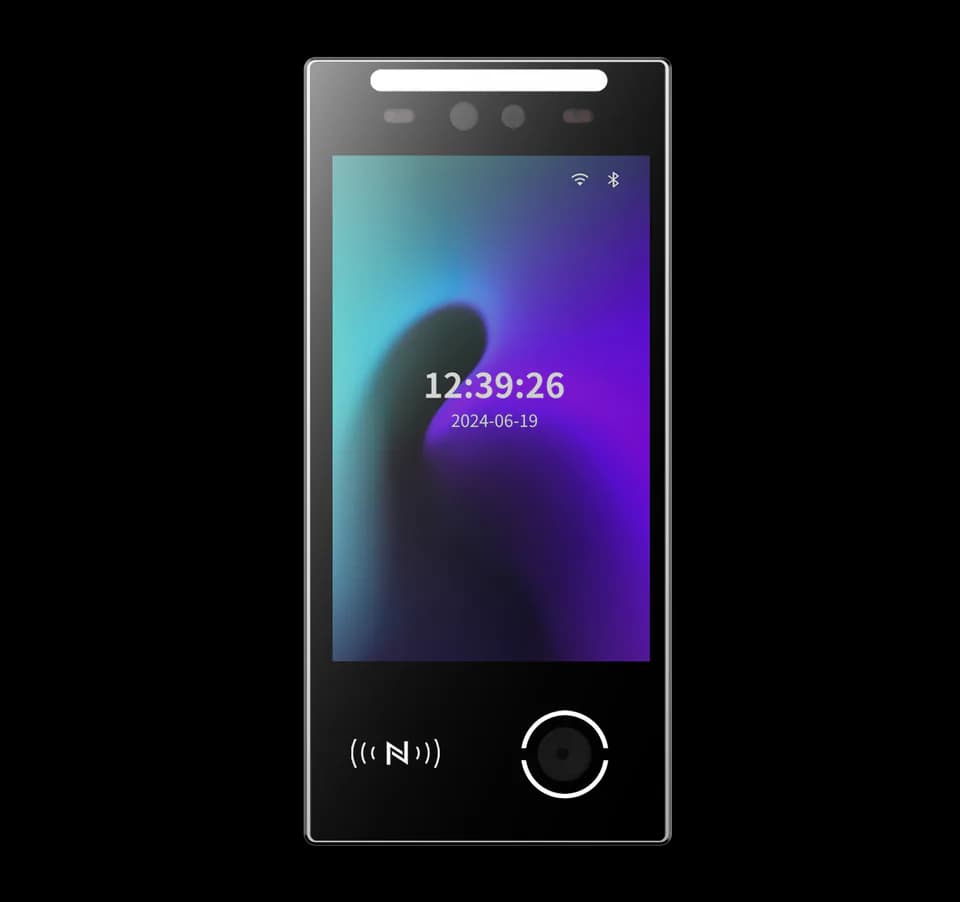
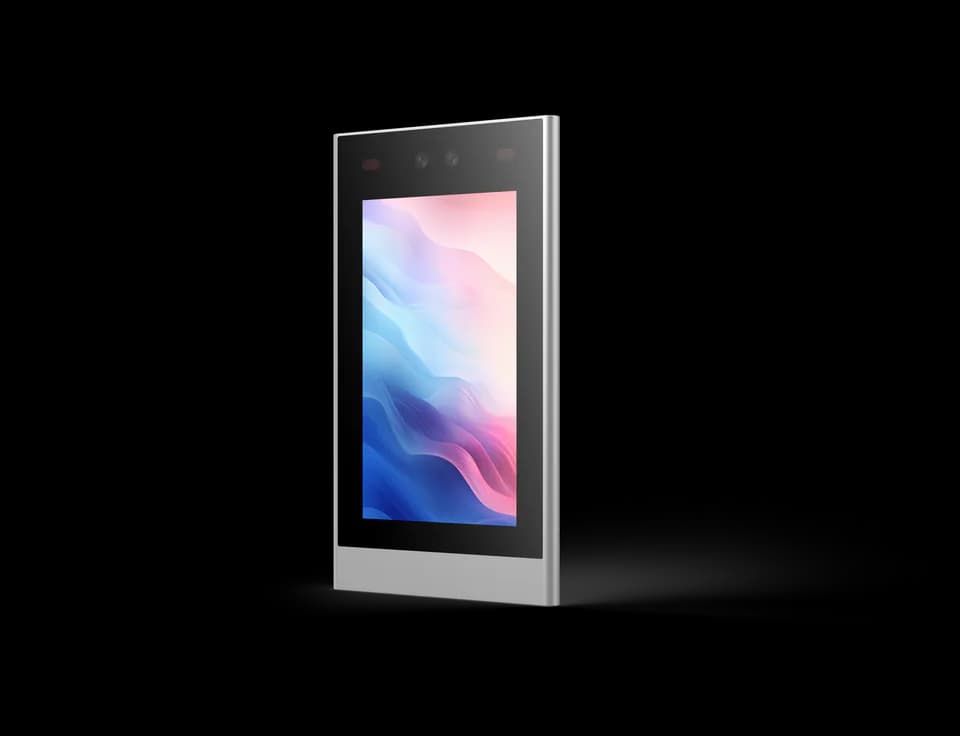
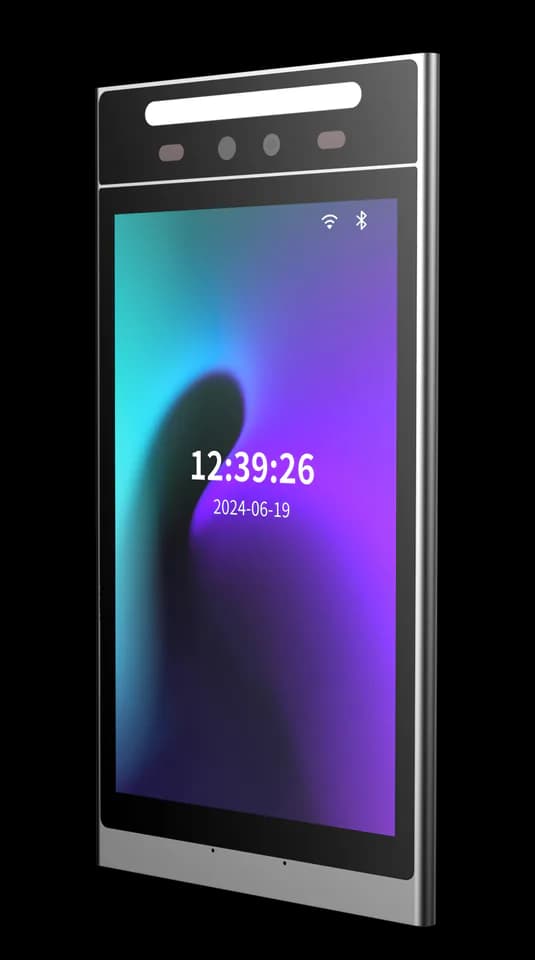
FCV5005 front and angled product views
FCV5005 product views; screen artwork illustrates the device interface.

AT THE POINT OF INTERACTION

A clear task.
A visible result.

Choose the credential and application together. Functions depend on the selected modules, firmware and software.

Recognise a person

Choose face authentication for enrolled users. Plan enrolment, user permission and the way the application handles an unrecognised visitor.

Offer another way in

Select the supported card, QR or password workflow for the required credential modules and software. Confirm those options with the evaluation unit.

Show the next step

Use the display for an instruction and a clear result. Your application decides whether to continue, ask for another credential or direct the visitor to assistance.

FROM IDENTITY TO ACTION

Connect the moment
to the system.

Develop device interfaces and behaviour with DejaOS on the supported configuration. Ethernet, RS485 and Wiegand provide host and access connections. Match your SDK, credential modules and host protocol to the device you evaluate.

  1. 01

    The person

    Presents a credential or follows the on-screen prompt.

  2. 02

    Your application

    Validates identity and applies the agreed access rules.

  3. 03

    The access system

    Receives the result, controls passage and records the event as configured.

Integration outline. The terminal, host software, controller and lock need a matching configuration; this is not a wiring diagram.

DESIGN AROUND THE PLACE

Where could it fit?

Example workflows to discuss with your integrator.

01

Gym membership

Your membership application can validate entitlement and return an entry result to the gate or access system.

02

Visitor services

Display arrival instructions and connect the selected QR or card workflow to the visitor platform.

03

Workplace access

Build an on-device interaction that explains the result of the access policy, including what to do when entry is not granted.

Technical details

A closer look.

Options vary by configuration. Use these details to plan your evaluation.

FCV5005 specifications
Operating systemLinux
Display8-inch LCD touch screen · 800 × 1280 pixels
ProcessorDual-core ARM Cortex-A7 · 1 GHz
Storage8 GB; expanded storage is configuration dependent
Host interfacesEthernet, RS485 and Wiegand 26/34; confirm the selected cable set
Wireless options2.4 GHz Wi-Fi and 4G options; confirm the required modules and region
Power input9–24 V DC · 12 V recommended

Installation & connections

Plan the fit.

  1. Choose wall or pedestal placement using the supplied dimensions and mounting instructions.
  2. Allow an unobstructed approach to the camera and a readable screen position for the people who will use it.
  3. Route the harness through the mounting assembly, check the electrical connections and test the full interaction with the access system.

Product resources

Manuals & drawings.

Documents for FCV5005 →
  • FCV5005 user manual

    Manual · English; some Chinese screenshots · PDF · 2.4 MB

    The source manual uses the VF205 hardware designation.

    Download PDF
  • FCV5005 video intercom user and installation manual

    Manual · English translation · PDF · 1.7 MB

    For the Feoceyoffice video-intercom application. Confirm the application, firmware and service configuration for your project.

    Download PDF

A few things worth knowing.

What lighting conditions should we consider?

Strong backlight, direct sunlight, reflections and close-range lighting can reduce capture quality. Evaluate the terminal in its intended position and avoid pointing the camera directly toward a bright window or concentrated light source.

What kind of enrollment photograph should we use?

Use a clear, front-facing JPG without beauty filters, heavy makeup, sunglasses, a mask or other facial obstruction. File size and image dimensions can vary by software and model, so confirm the current import requirements before preparing a large enrollment set.

What should we confirm before connecting a face terminal to the network?

Confirm whether the selected configuration uses wired networking, Wi-Fi or another connection method, then collect the network and platform settings required by that system. A local network connection does not by itself prove that the device is connected to the management service, so verify both states separately.

Your next step

Let’s put FCV5005
in your project.

Tell us where it will be used, how it should connect and the quantity you need.

Discuss your project