Face Terminals

FCV4905

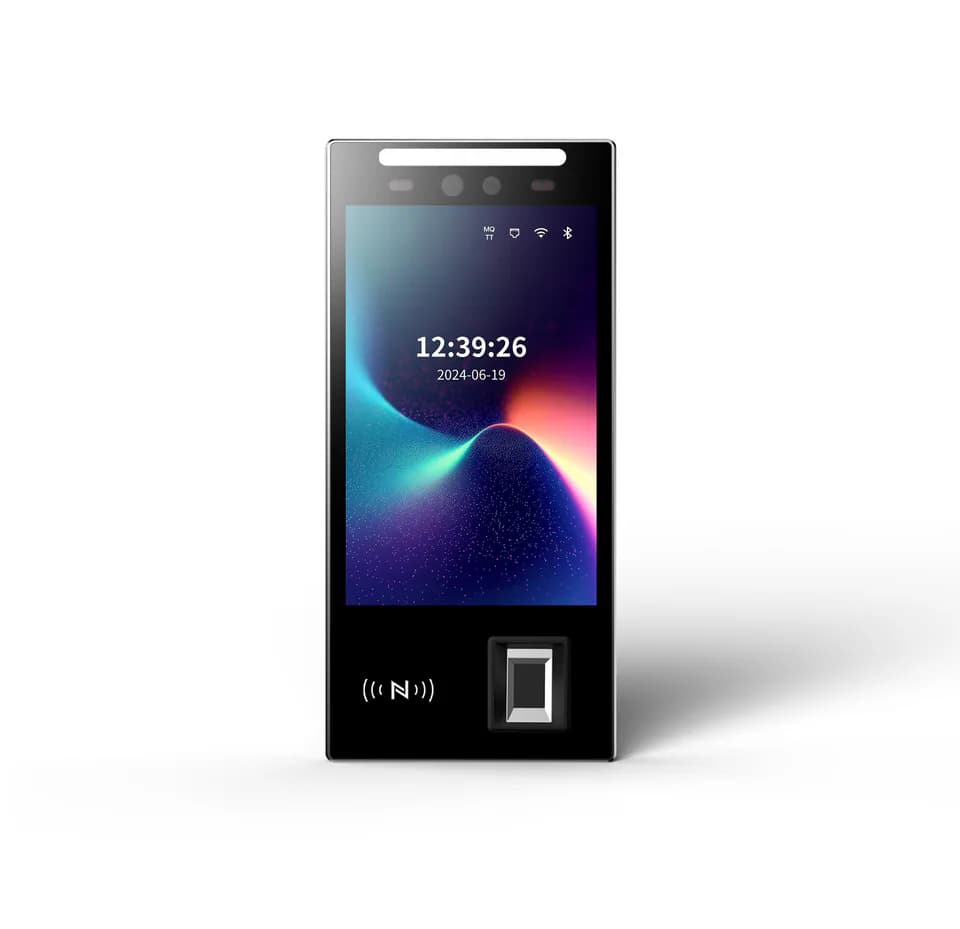
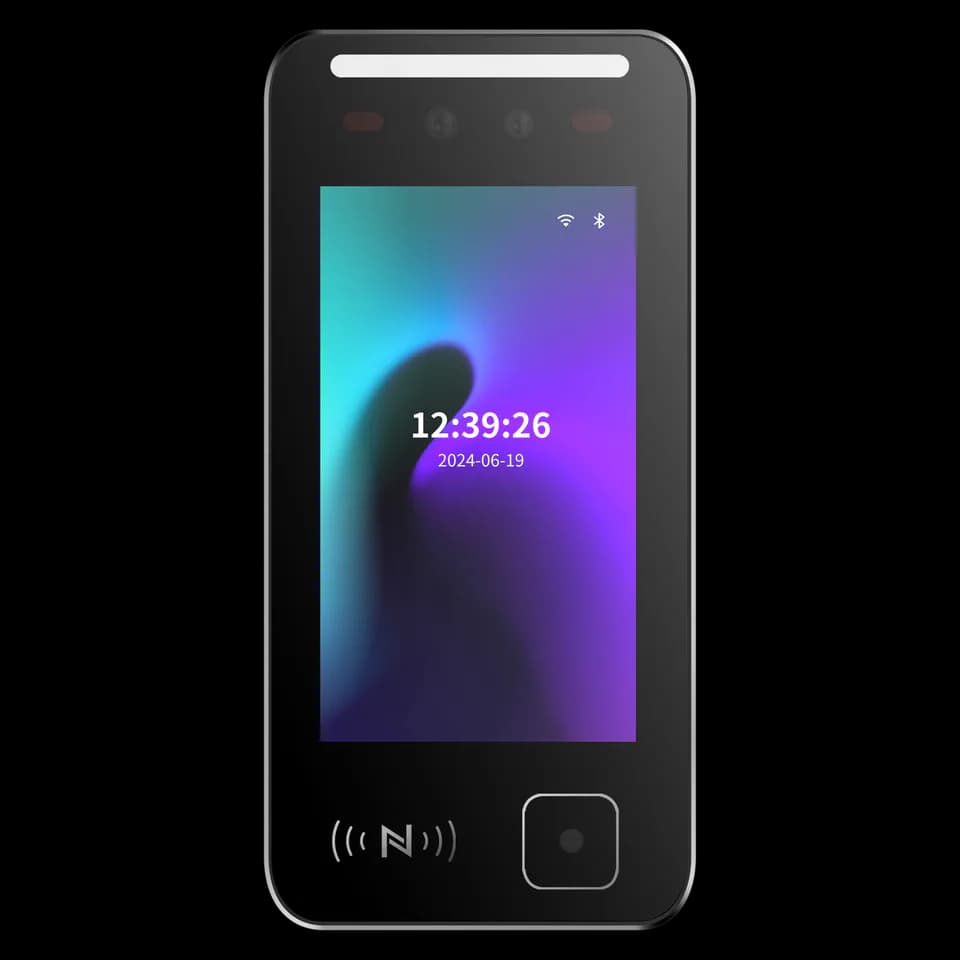
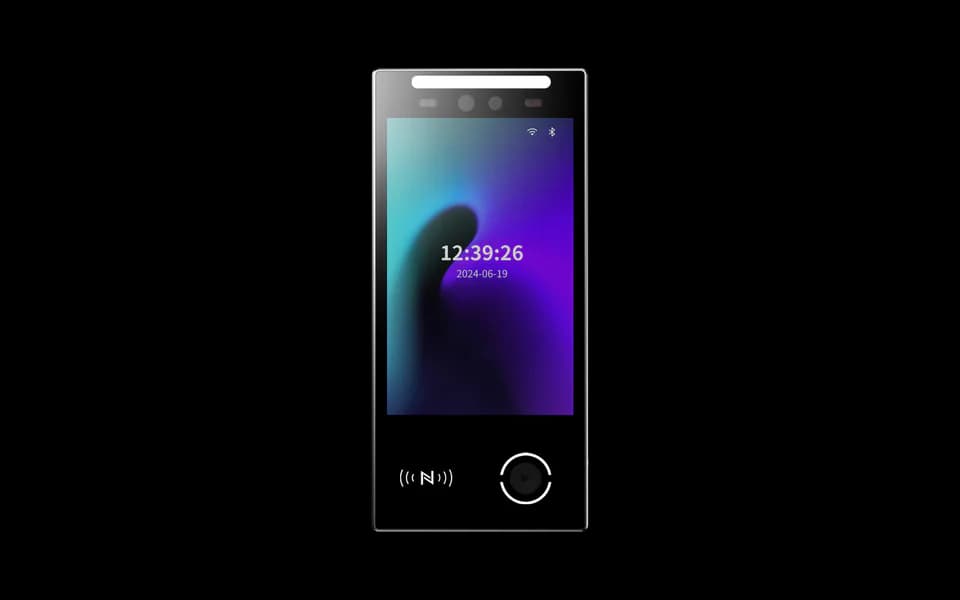
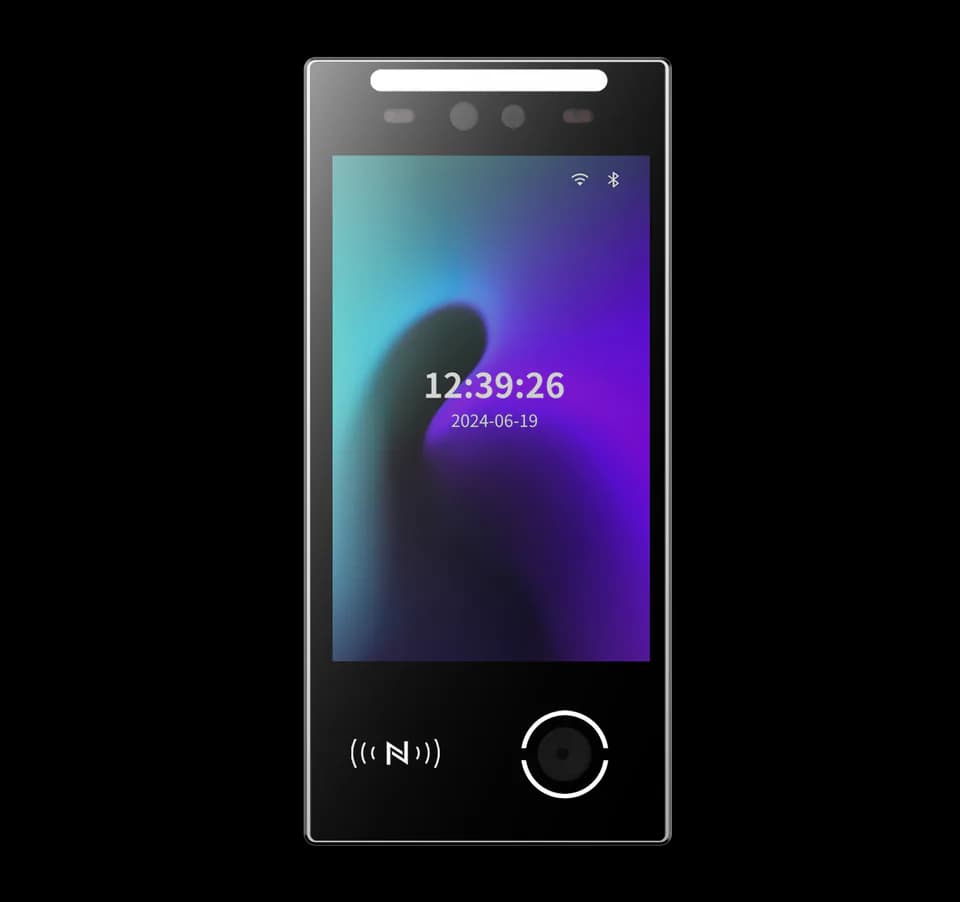
8-inch face authentication terminal

A clear welcome at every entrance.

An 8-inch face terminal for access, attendance and visitor interactions. Choose the credential modules and mounting arrangement, then connect the device to your access system.

  • 8-inch touch display
  • Linux platform
  • Multiple mounting options
At a glance
8-inchHuman-facing display
Application platform
LinuxMatch firmware to your project
Design focus
Face · QR · card optionsSelected configuration

THE FCV4905 EXPERIENCE

A welcome people can understand.

Give the entrance a clear place to interact. The portrait touch display brings instructions and identity feedback together, while a choice of mounting arrangements makes FCV4905 useful beside a door, on a gate or at a reception point.

Explore the product manual
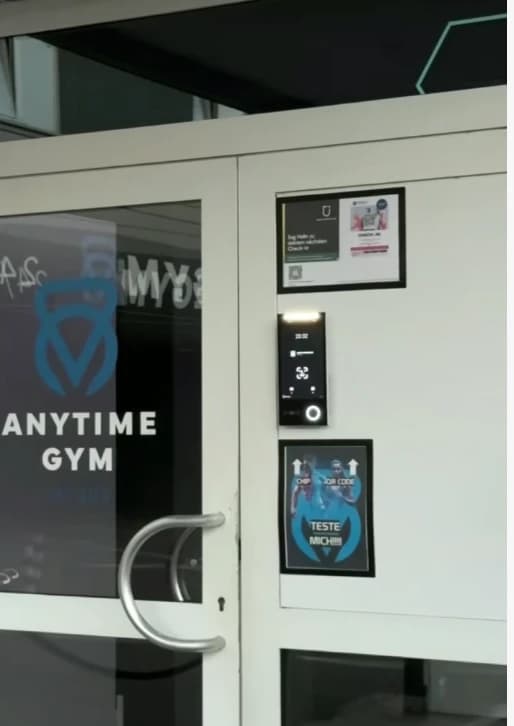
FCV4905 installed beside the door of a fitness club
Installation photograph from the supplied FCV4905 use-case materials.

AT THE POINT OF INTERACTION

A clear task.
A visible result.

Choose the credential and application together. Functions depend on the selected modules, firmware and software.

Recognise a person

Choose face authentication for enrolled users. Plan enrolment, user permission and the way the application handles an unrecognised visitor.

Offer another way in

Select the supported card, QR or password workflow for the required credential modules and software. Confirm those options with the evaluation unit.

Show the next step

Use the display for an instruction and a clear result. Your application decides whether to continue, ask for another credential or direct the visitor to assistance.

FROM IDENTITY TO ACTION

Connect the moment
to the system.

Ethernet connects the terminal to a host network. RS485, Wiegand 26/34, inputs and a relay provide access-hardware connections. On the supported DejaOS configuration, develop device screens and behaviour around your service; confirm the matching SDK and host protocol before integration.

  1. 01

    The person

    Presents a credential or follows the on-screen prompt.

  2. 02

    Your application

    Validates identity and applies the agreed access rules.

  3. 03

    The access system

    Receives the result, controls passage and records the event as configured.

Integration outline. The terminal, host software, controller and lock need a matching configuration; this is not a wiring diagram.

DESIGN AROUND THE PLACE

Where could it fit?

Example workflows to discuss with your integrator.

01

Membership entry

Connect identification to the membership platform so the application can check entitlement before requesting entry.

02

Workplace arrival

Bring attendance and door-entry interactions to the same terminal. Define how attendance events relate to the access decision.

03

Visitor reception

Use screen prompts and a selected QR or card configuration to guide visitors through your own registration workflow.

Technical details

A closer look.

Options vary by configuration. Use these details to plan your evaluation.

FCV4905 specifications
Operating systemLinux
Display8-inch touch screen · 800 × 1280 pixels
ProcessorDual-core ARM Cortex-A7 · 1 GHz
Storage8 GB; expanded storage is configuration dependent
Host interfacesEthernet, RS485 and Wiegand 26/34; configuration dependent
Wireless optionsWi-Fi and 4G options; confirm modules and regional availability
Power input9–24 V DC · 12 V recommended

Installation & connections

Plan the fit.

  1. Choose wall, pedestal, desktop or floor-stand placement around the point where people naturally pause.
  2. Check the camera view, approach and screen reach for your users. Avoid a location where the door leaf blocks the device.
  3. Route the network and access cables through the selected bracket. Check the terminal pinout, lock supply and relay load before applying power.

Product resources

Manuals & drawings.

Documents for FCV4905 →
  • FCV4905 user manual

    Manual · English · PDF · 2.5 MB

    Download PDF
  • FCV4905 video intercom user and installation manual

    Manual · English translation · PDF · 1.7 MB

    For the Feoceyoffice video-intercom application. Confirm the application, firmware and service configuration for your project.

    Download PDF

A few things worth knowing.

What lighting conditions should we consider?

Strong backlight, direct sunlight, reflections and close-range lighting can reduce capture quality. Evaluate the terminal in its intended position and avoid pointing the camera directly toward a bright window or concentrated light source.

What kind of enrollment photograph should we use?

Use a clear, front-facing JPG without beauty filters, heavy makeup, sunglasses, a mask or other facial obstruction. File size and image dimensions can vary by software and model, so confirm the current import requirements before preparing a large enrollment set.

What should we confirm before connecting a face terminal to the network?

Confirm whether the selected configuration uses wired networking, Wi-Fi or another connection method, then collect the network and platform settings required by that system. A local network connection does not by itself prove that the device is connected to the management service, so verify both states separately.

Your next step

Let’s put FCV4905
in your project.

Tell us where it will be used, how it should connect and the quantity you need.

Discuss your project