QR Readers & Terminals

FC6820

Display QR and card terminal

Scan. Tap. See what comes next.

QR codes, cards and a 3.33-inch touch screen in one compact terminal. Choose a reader or access-control configuration and use DejaOS to shape the on-device experience.

  • 3.33-inch touch display
  • QR & card options
  • 86-box mounting
Interaction
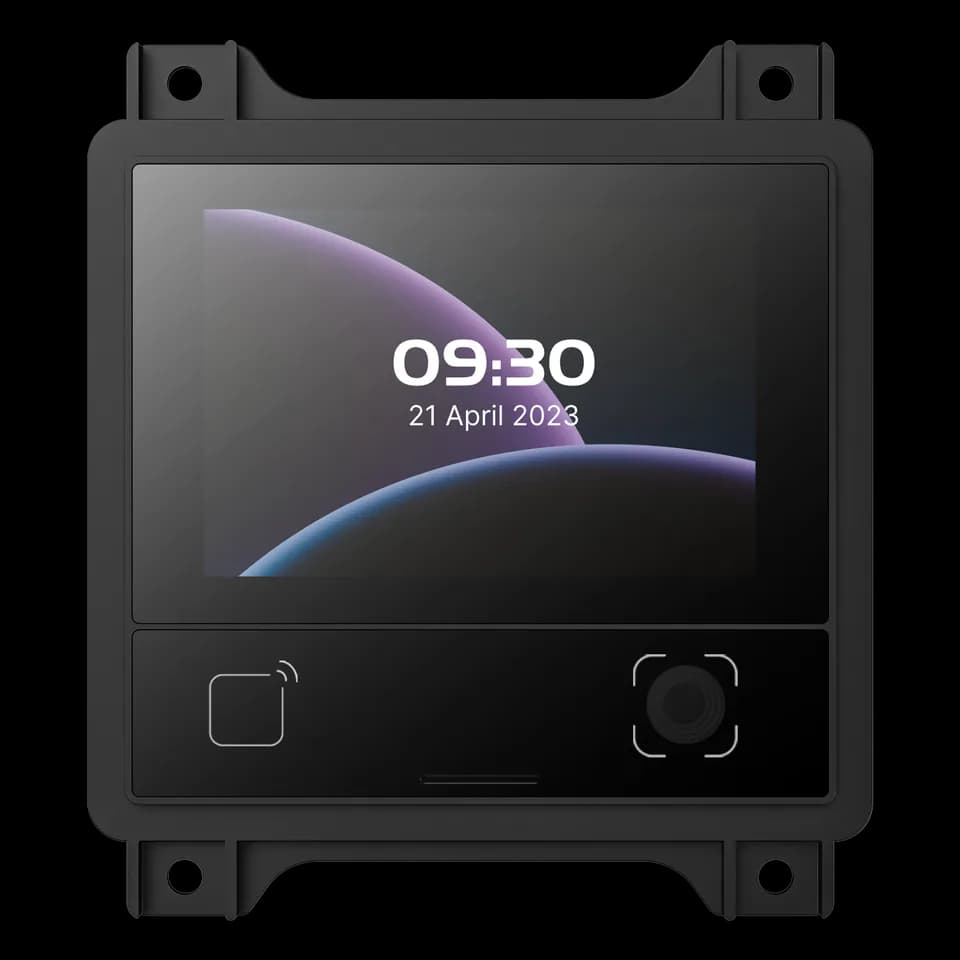
3.33-inch320 × 480 capacitive touch display
Connection
Ethernet + RS485Match the application protocol and firmware
Device role
Reader or controlSelect the configuration for your installation

Inside FC6820

A small screen with a clear role.

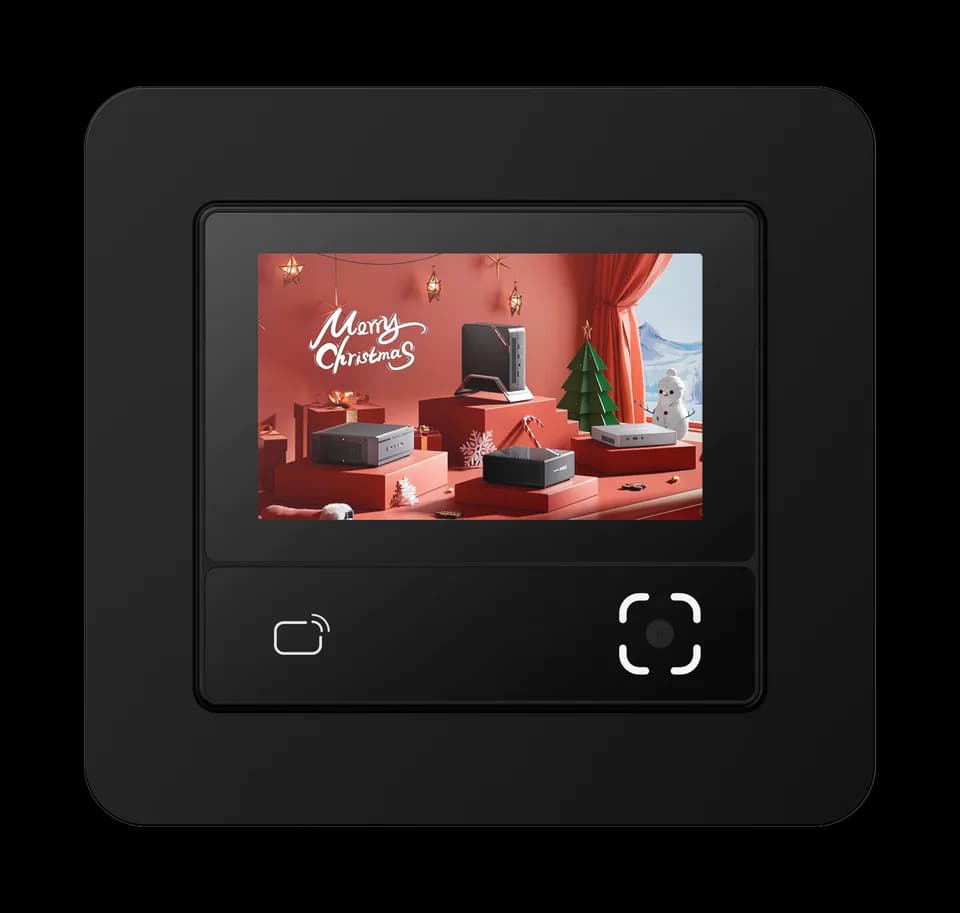
FC6820 brings QR and card interaction together with a touch display. At an entrance, the application can guide the user and show the result of a credential check. At an attended desk, a separately selected stand can place that interaction within reach. Choose the device role before planning the software and door wiring.

Plan the installation
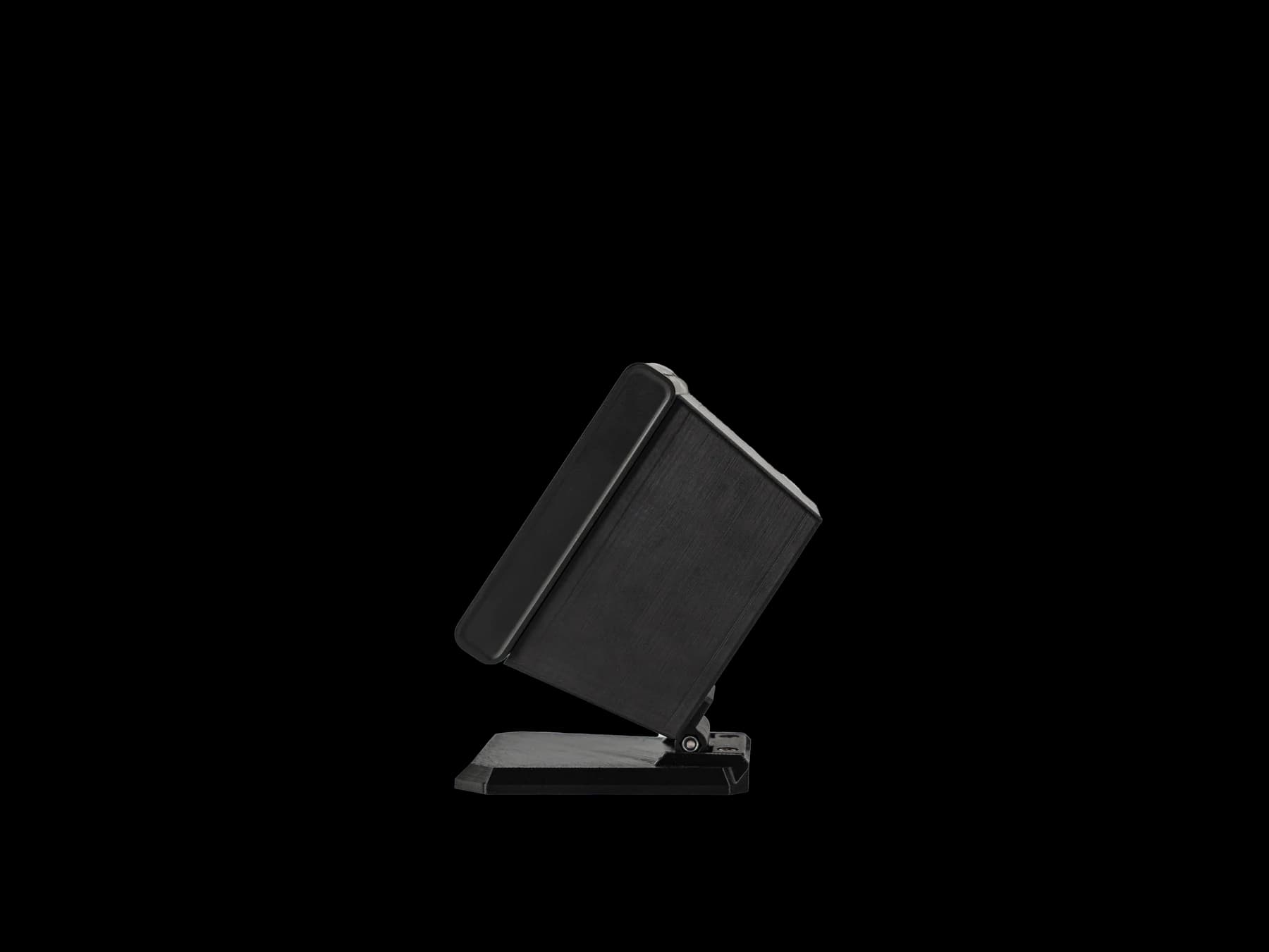
FC6820 side view on a desktop stand
FC6820 · desktop stand shown; confirm accessory availability

Choose around your project

The details that
make it fit.

01

Reader or access-control version

Use the reader version to pass credential data to a host or controller. The access-control configuration adds exit-switch and door-contact inputs and relay output. Do not assume those door connections are present on every version.

02

Make the screen part of the task

Plan the instructions, credential prompt and result message around your application. DejaOS provides a development path for a custom interface; confirm the SDK and firmware for the supplied configuration. Wi-Fi and voice are options.

03

Choose where it will sit

For a wall installation, review the 86-box mounting and cable route. For a desktop interaction, confirm the stand and rear clearance separately. The mounting arrangement should keep both the screen and reading area accessible.

From credential to action

How the parts
work together.

Ethernet and RS485 describe connections, not universal compatibility. Match the data format, response handling and firmware to your host. Confirm behaviour when the network is unavailable before deployment.

  1. 01

    Present the credential

    The user scans a code or presents a supported card, with the display guiding the interaction defined by the application.

  2. 02

    Check permission

    The selected application, server or compatible controller checks the credential. A successful read alone does not grant access.

  3. 03

    Show the next step

    The application presents the result. Door operation uses either the matched external controller or the selected access-control configuration and its approved circuit.

Example workflow · confirm the configuration and wiring for the supplied equipment.

Technical details

A closer look.

Options vary by configuration. Use these details to plan your evaluation.

FC6820 specifications
Operating systemLinux / DejaOS
Display3.33-inch IPS capacitive touch screen · 320 × 480 pixels
Wired communicationEthernet and RS485
BluetoothBLE 5.1
Access-control connectionsExit-switch input, door-contact input and relay output on the access-control configuration
Power input9–15 V DC · 12 V typical
Mounting86-box surface mounting
OptionsReader, access-control, voice and Wi-Fi variants; confirm the required configuration

Installation & connections

Plan the fit.

  1. Choose the reader or access-control version before planning the cable set. Match the connection reference to the device label and supplied harness.
  2. Review the 86-box mounting on manual p. 24, or the alternative mounting on p. 25. Keep the screen and reading window accessible and leave room for rear connections; confirm any desktop stand separately.
  3. Disconnect power before wiring. The manual specifies 9–15 V DC, with 12 V typical. Door-contact, exit-switch and relay connections apply to the access-control configuration.
  4. Test credential reading, the host permission result and the displayed response together. Where door control is included, check allowed, denied and network-unavailable cases with the responsible installer.

Product resources

Manuals & drawings.

Documents for FC6820 →
  • FC6820 user manual

    Manual · English · PDF · 1.9 MB

    The source manual uses the DW200 hardware designation. Match the reader or access-control version before wiring.

    Download PDF
  • FC6820 interface and wiring guide

    Integration guide · English translation · PDF · 461 KB

    The source filename says READER, while its diagrams include access-control connections. Use it only after matching the exact terminal version and harness.

    Download PDF

A few things worth knowing.

Does every FC6820 include door-control connections?

No. Select the reader or access-control configuration first. Exit-switch and door-contact inputs and relay output apply to the access-control configuration. Match the supplied harness and firmware to the connection reference; a shared model family does not make every version interchangeable.

Can the same configuration tool be used for every reader?

Do not assume so. Reader firmware and access-control firmware can use different tools, configuration codes or platform commands. Share the overseas model, firmware and intended operating mode so the matching method can be checked before changing settings.

Is a network connection the same as a connection to the management platform?

No. A device can have local network access without maintaining its platform or messaging connection. Check the physical network, IP settings and service connection separately, using the indicators or logs available for the selected system.

Your next step

Let’s put FC6820
in your project.

Tell us where it will be used, how it should connect and the quantity you need.

Discuss your project