Face Terminals

FCV5002

Face authentication terminal

A smaller screen for a focused task.

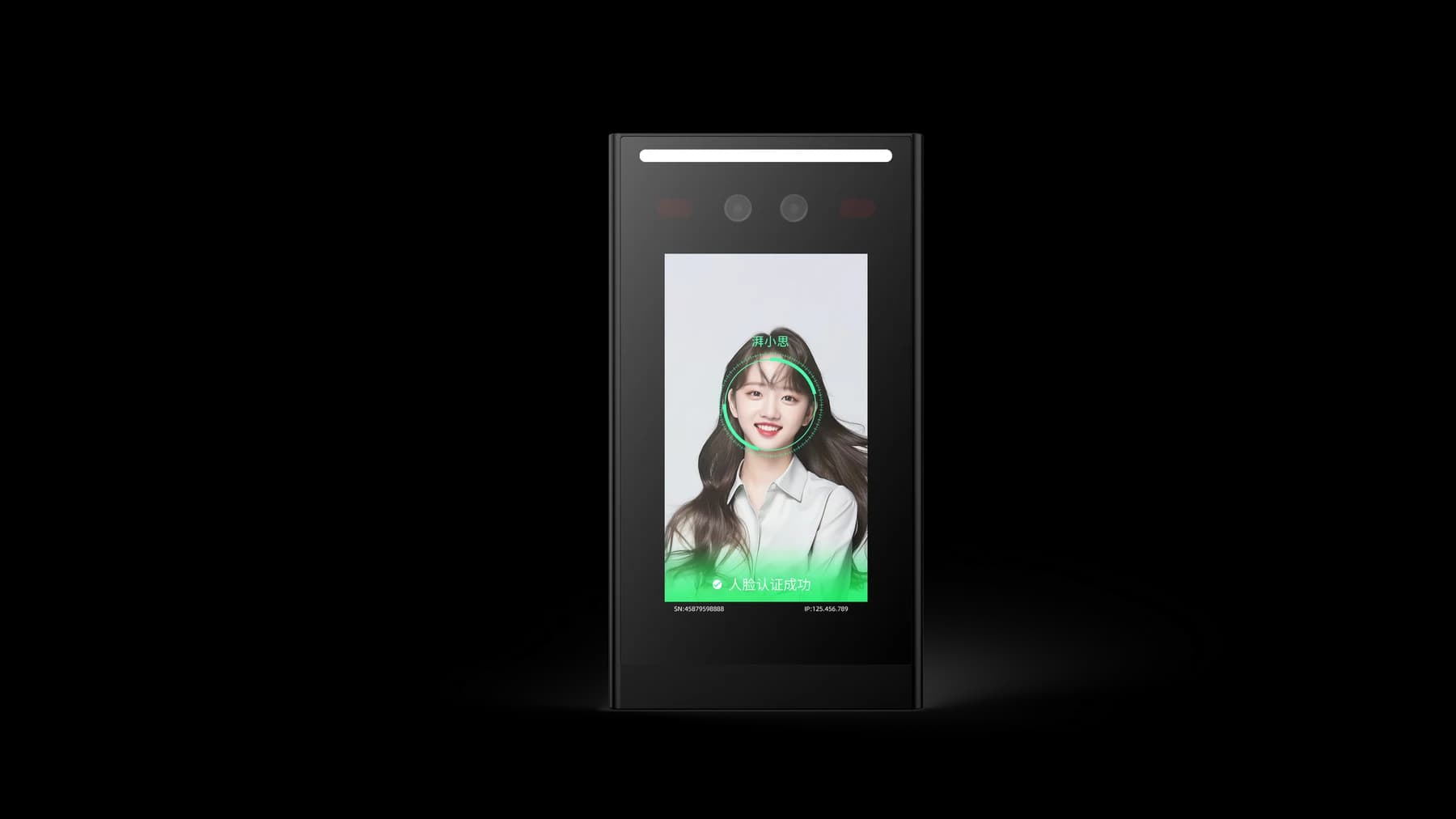
The 5-inch FCV5002 brings face authentication to doors, attendance points and gates. Its Linux platform connects to an access system through Ethernet, RS485 or Wiegand.

  • 5-inch LCD
  • Linux platform
  • Wired access interfaces
At a glance
5-inchHuman-facing display
Application platform
LinuxMatch firmware to your project
Design focus
Focused identity tasksSelected configuration

THE FCV5002 EXPERIENCE

A short interaction. A compact device.

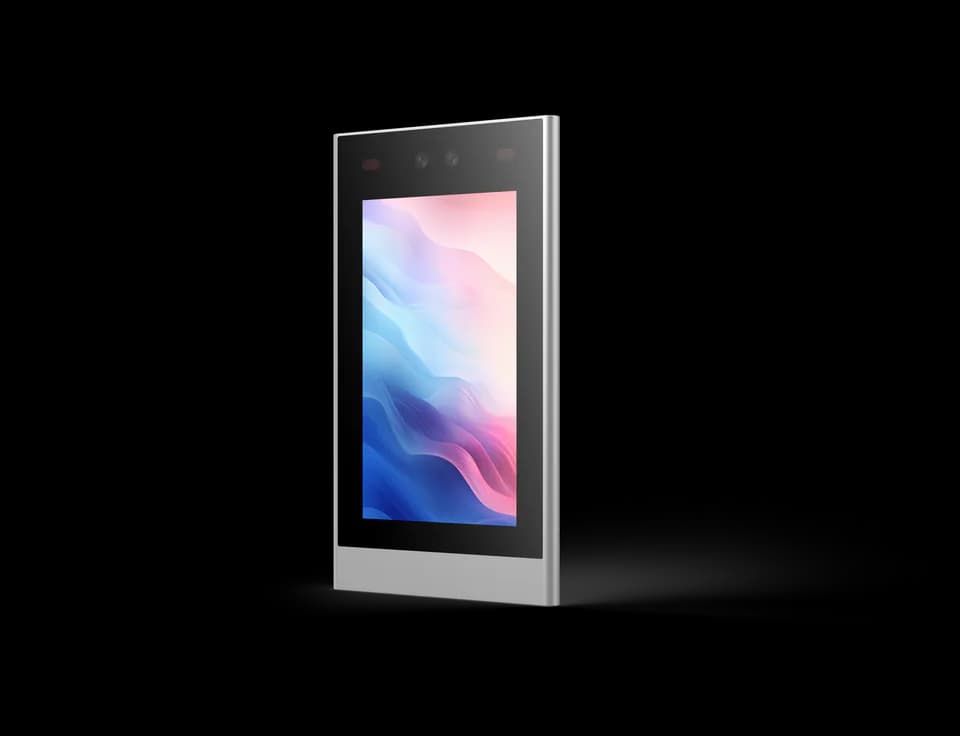
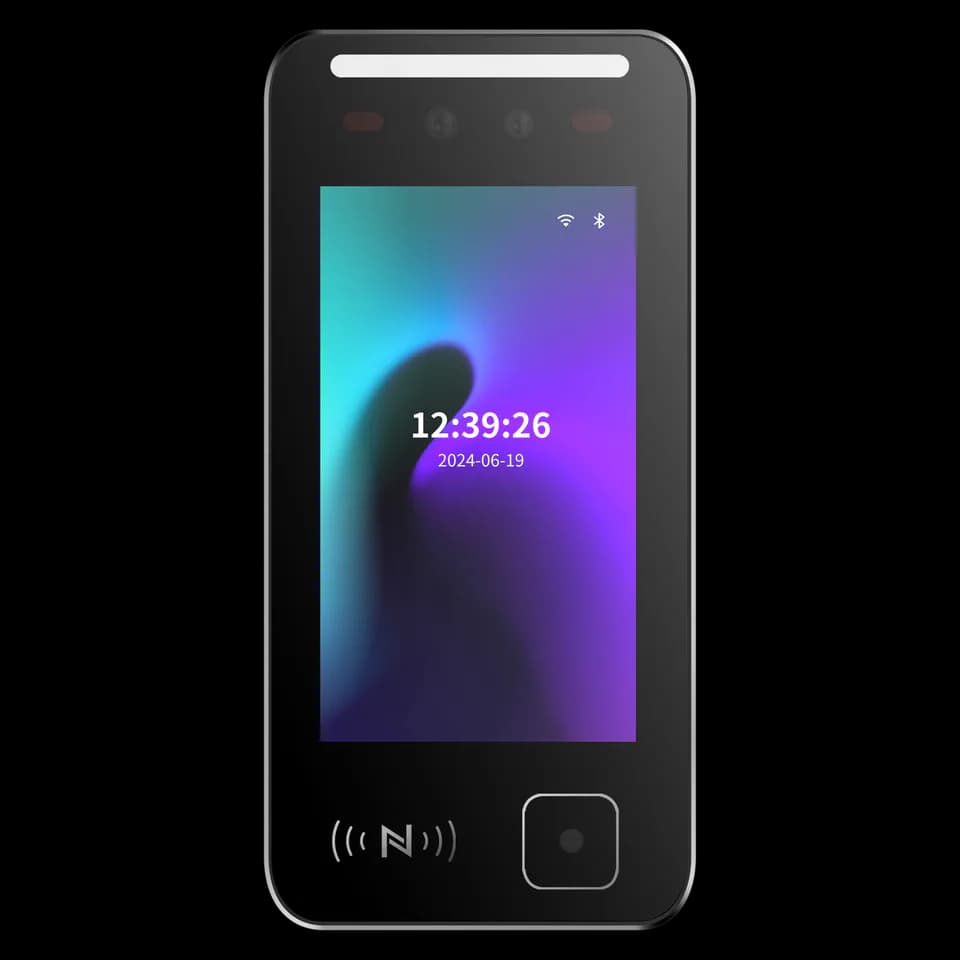
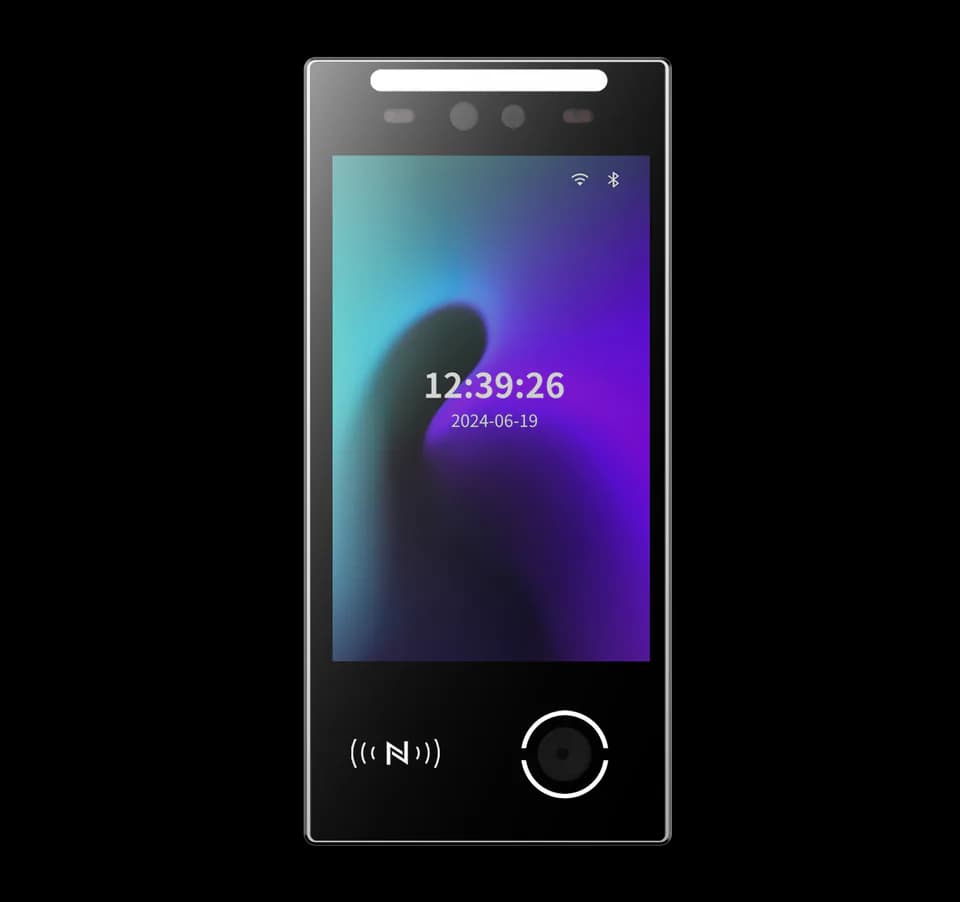
FCV5002 provides a 5-inch display for entrances that need a focused identification step. Use its Linux platform and wired interfaces to connect face authentication to the access or attendance system around it.

Explore the product manual
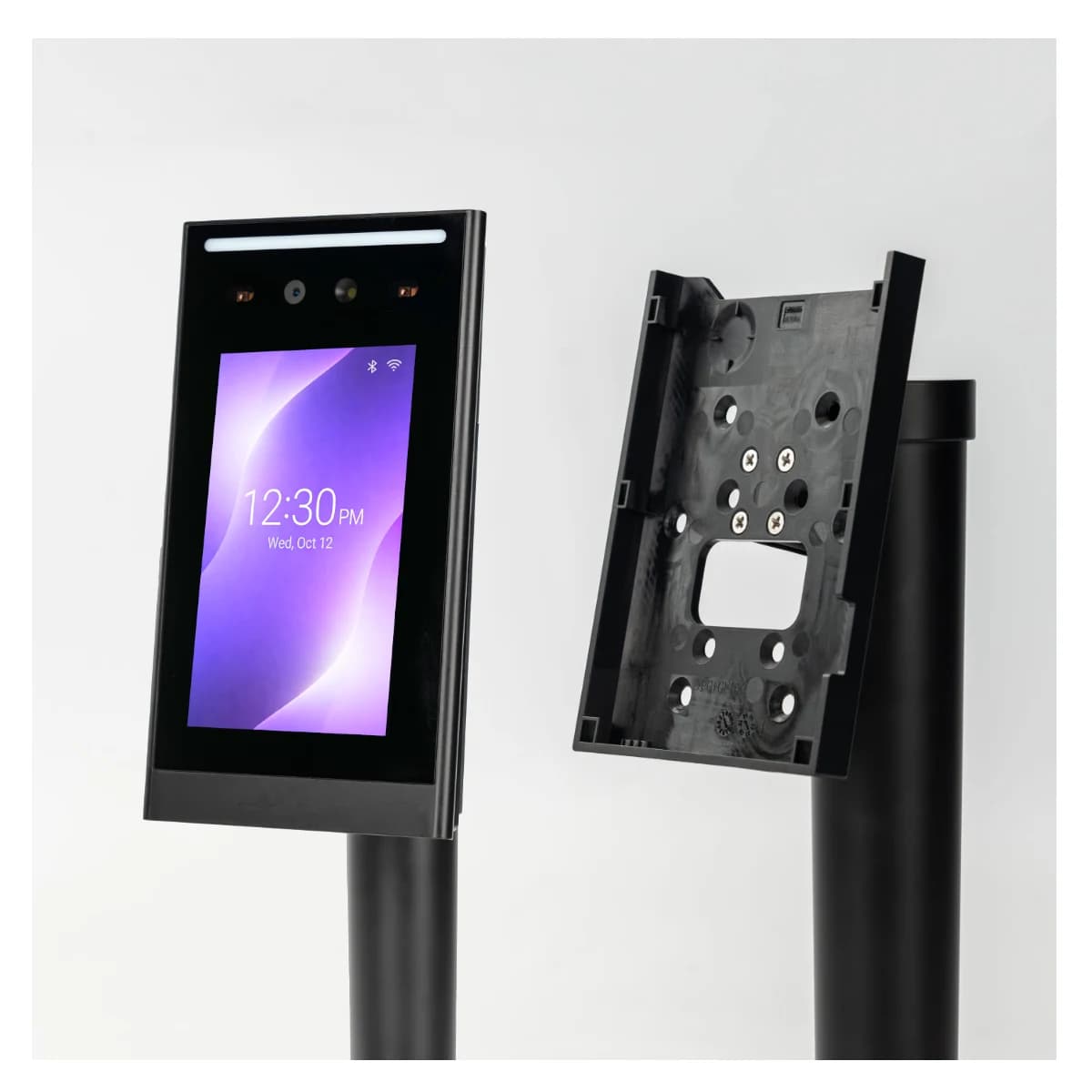
FCV5002 terminal and mounting-plate views
FCV5002 product and mounting views; accessories depend on the selected order.

AT THE POINT OF INTERACTION

A clear task.
A visible result.

Choose the credential and application together. Functions depend on the selected modules, firmware and software.

Recognise a person

Choose face authentication for enrolled users. Plan enrolment, user permission and the way the application handles an unrecognised visitor.

Keep the task focused

Use the 480 × 854 screen for a concise prompt and a visible result. Test readability at the intended mounting distance.

Show the next step

Use the display for an instruction and a clear result. Your application decides whether to continue, ask for another credential or direct the visitor to assistance.

FROM IDENTITY TO ACTION

Connect the moment
to the system.

Ethernet, RS485 and Wiegand 26/34 provide the documented wired paths. On the supported DejaOS configuration, device applications can shape the screen and behaviour. Confirm any 4G expansion and the corresponding firmware with the sample.

  1. 01

    The person

    Presents a credential or follows the on-screen prompt.

  2. 02

    Your application

    Validates identity and applies the agreed access rules.

  3. 03

    The access system

    Receives the result, controls passage and records the event as configured.

Integration outline. The terminal, host software, controller and lock need a matching configuration; this is not a wiring diagram.

DESIGN AROUND THE PLACE

Where could it fit?

Example workflows to discuss with your integrator.

01

Single-door access

Connect the terminal to an existing access arrangement and identify which controller owns the door-release decision.

02

Attendance checkpoints

Capture the verified interaction in your attendance workflow and define repeated-event handling.

03

Gate equipment

Select the bracket and harness with the gate design, leaving access to the rear connectors for service.

Technical details

A closer look.

Options vary by configuration. Use these details to plan your evaluation.

FCV5002 specifications
Operating systemLinux
Display5-inch LCD · 480 × 854 pixels
ProcessorDual-core ARM Cortex-A7 · 1 GHz
Storage8 GB
Interfaces10/100M Ethernet, RS485 and Wiegand 26/34
Mobile network4G is an optional expansion; confirm regional availability
Power input9–24 V DC · 12 V recommended

Installation & connections

Plan the fit.

  1. Use the dimensions and bracket drawing to check wall or equipment clearance.
  2. Plan the camera position around the expected approach rather than the available wall space alone.
  3. Check the pin-to-cable correspondence in the manual before connecting the host. Use the selected power and interface configuration.

Product resources

Manuals & drawings.

Documents for FCV5002 →

A few things worth knowing.

What lighting conditions should we consider?

Strong backlight, direct sunlight, reflections and close-range lighting can reduce capture quality. Evaluate the terminal in its intended position and avoid pointing the camera directly toward a bright window or concentrated light source.

What kind of enrollment photograph should we use?

Use a clear, front-facing JPG without beauty filters, heavy makeup, sunglasses, a mask or other facial obstruction. File size and image dimensions can vary by software and model, so confirm the current import requirements before preparing a large enrollment set.

What should we confirm before connecting a face terminal to the network?

Confirm whether the selected configuration uses wired networking, Wi-Fi or another connection method, then collect the network and platform settings required by that system. A local network connection does not by itself prove that the device is connected to the management service, so verify both states separately.

Your next step

Let’s put FCV5002
in your project.

Tell us where it will be used, how it should connect and the quantity you need.

Discuss your project