QR Readers & Terminals

FC7780

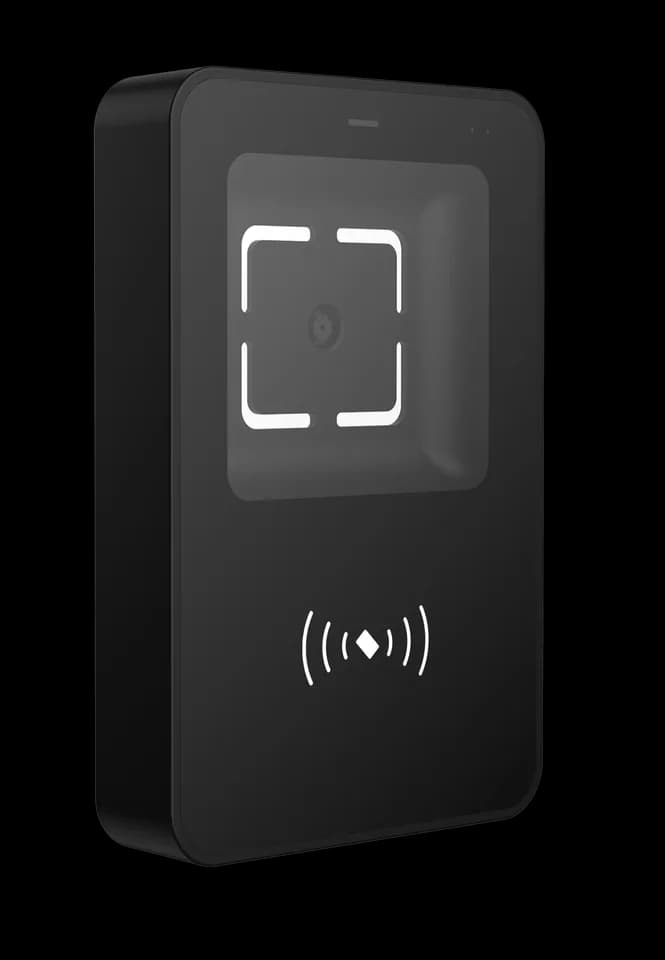
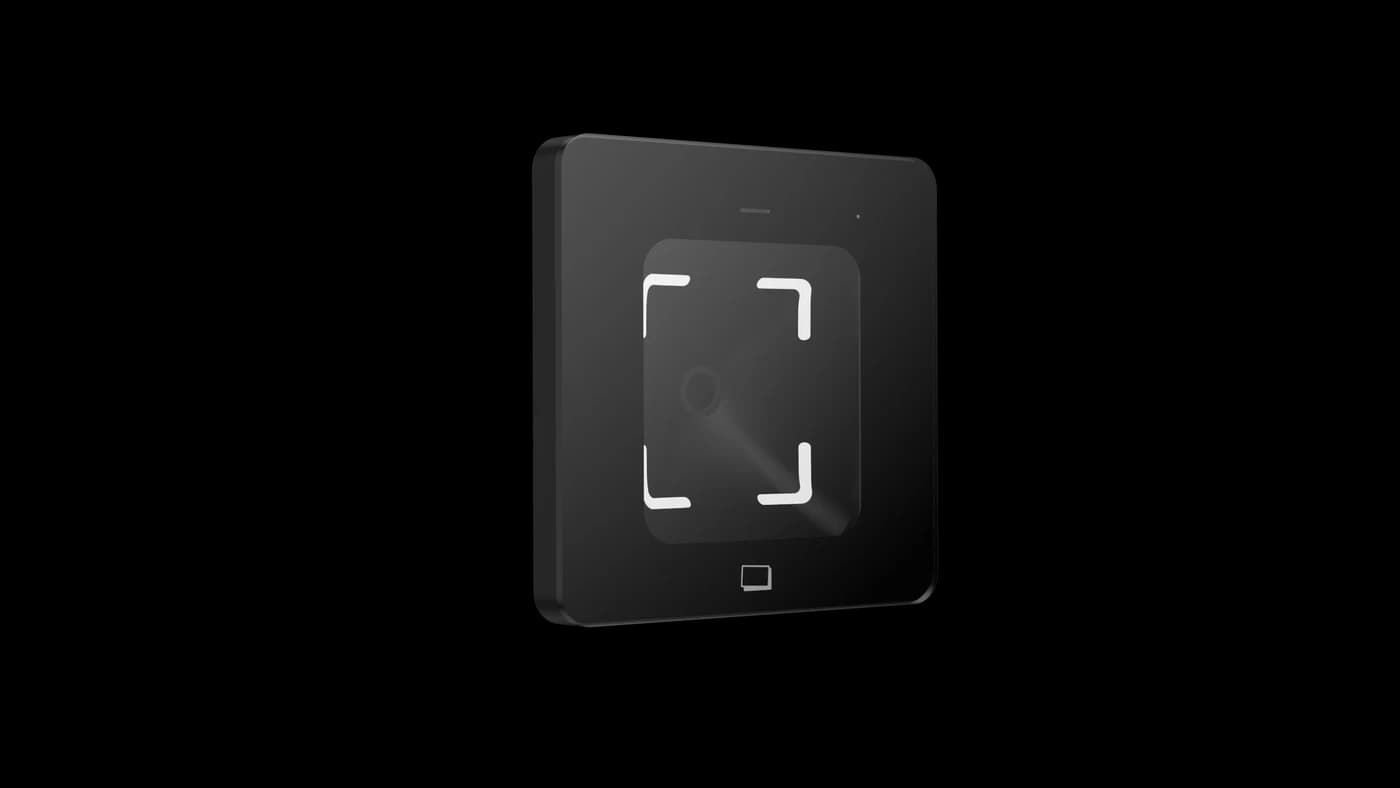
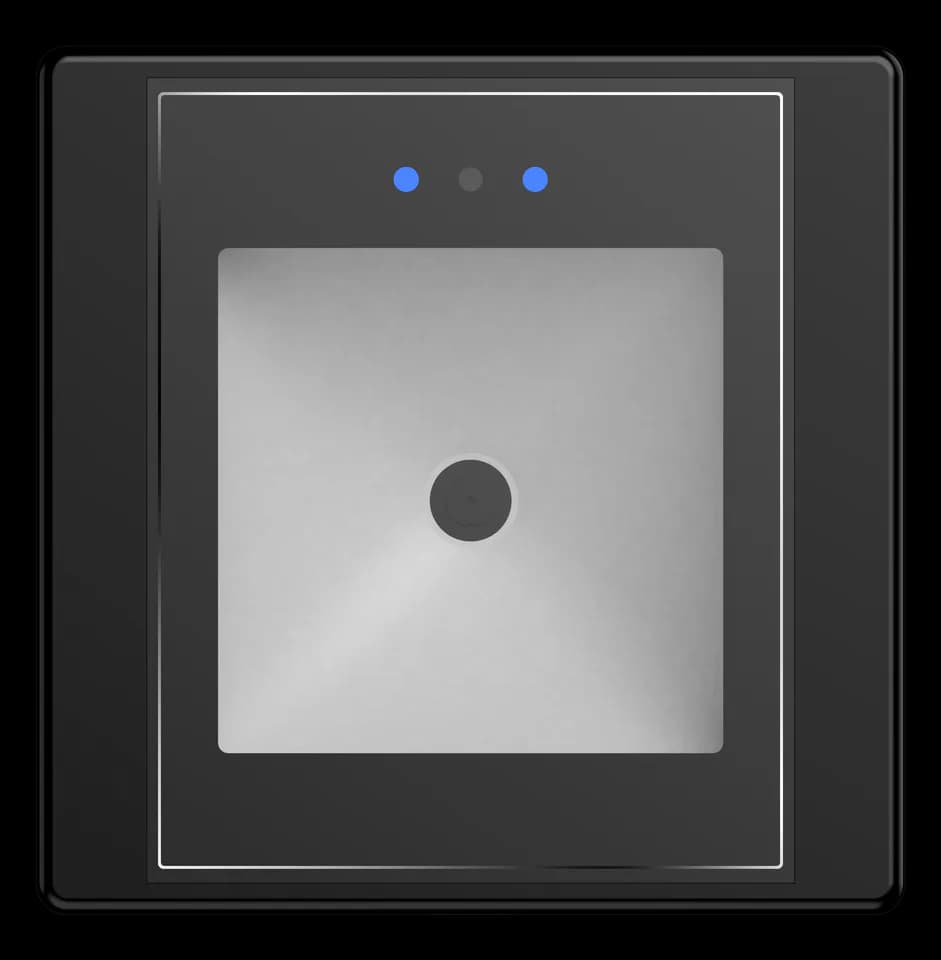
86-box QR and NFC reader

Scan or tap at a shared entrance.

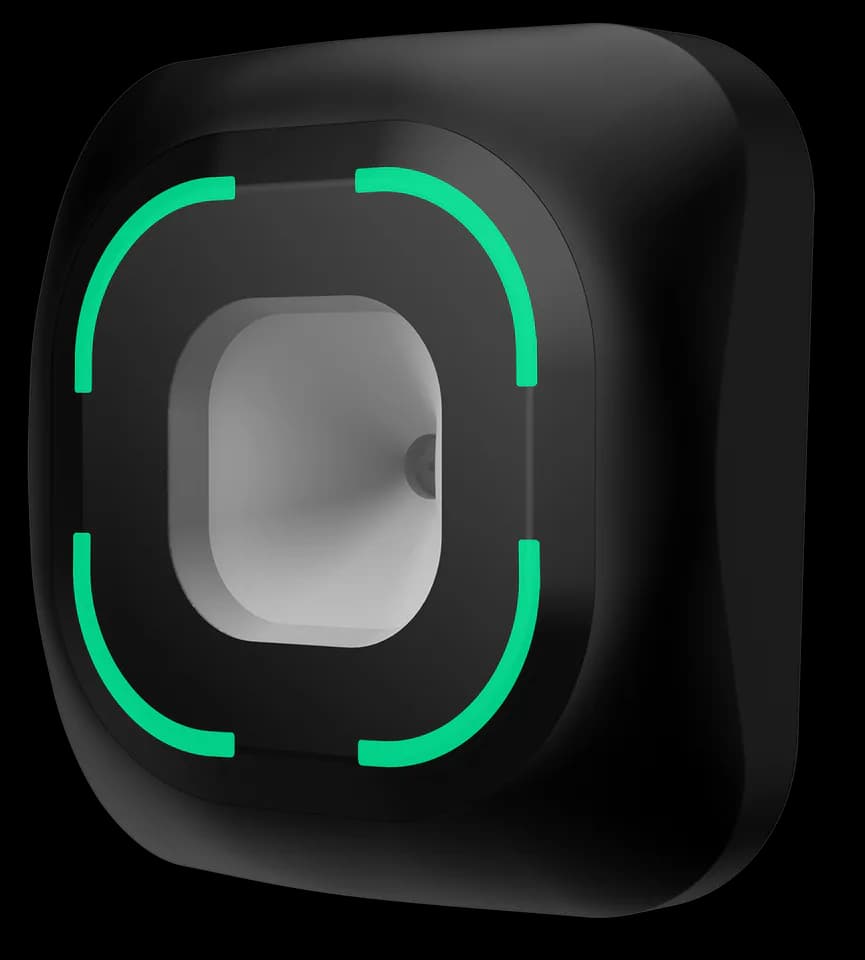
An 86-box QR and NFC reader for door and shared-space access. Network, serial, Wiegand and relay options let the selected configuration fit the access system around it.

  • QR & NFC
  • 86-box mounting
  • Interface options
Interaction
Scan + tapQR and NFC credential workflows
Installation
86-boxPlan the frame, opening and cable space
Connection
By configurationSelect the output for your access system

Inside FC7780

One reading point at a shared entrance.

FC7780 gives people a place to present a QR code or supported NFC credential at a door or shared-space entrance. Behind the faceplate, the selected connection links that interaction to your access system. Plan the reader, receiving software and door hardware as one workflow.

Plan the installation
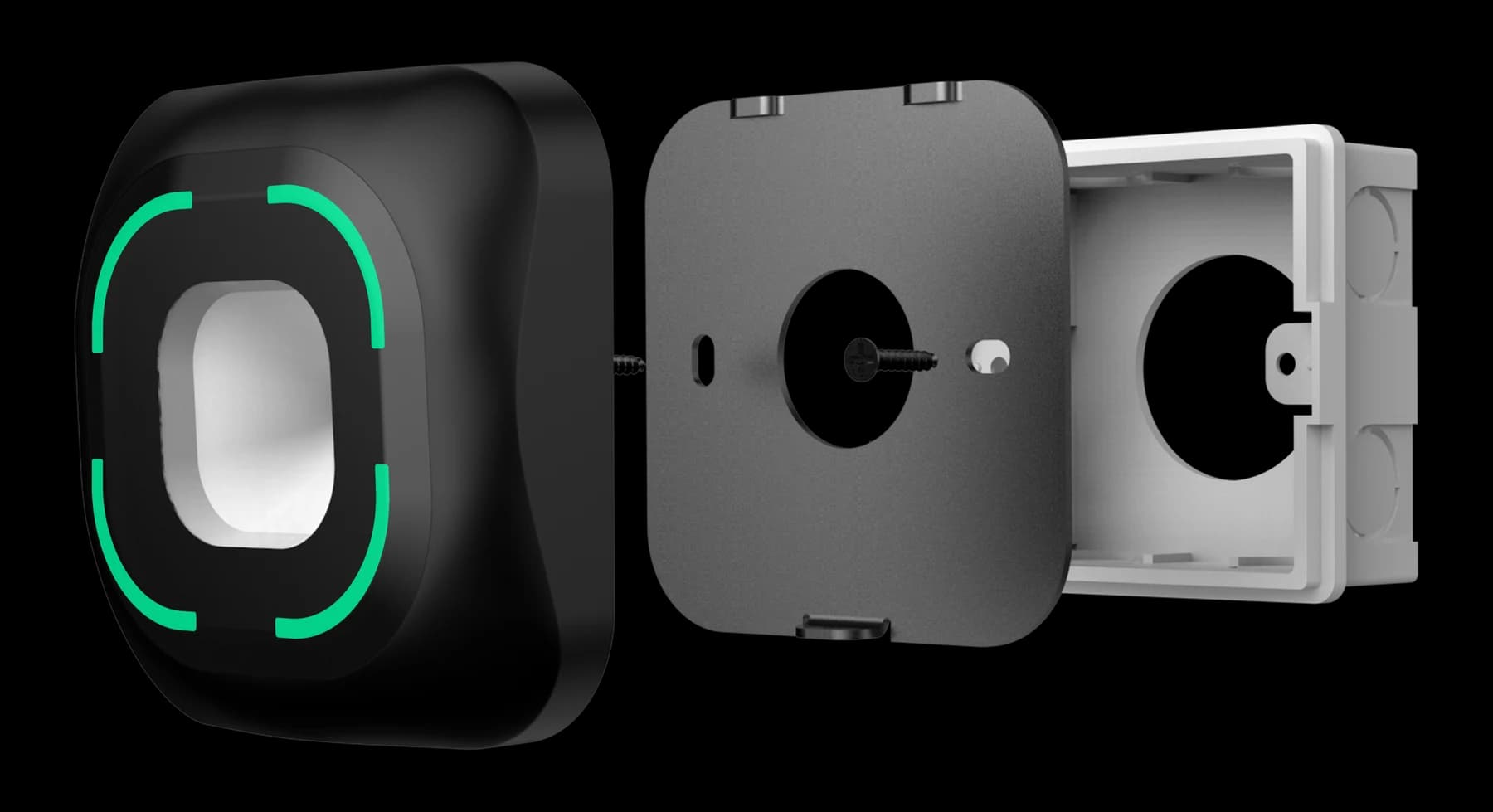
FC7780 reader, mounting frame and installation box
FC7780 · mounting assembly shown

Choose around your project

The details that
make it fit.

01

Match the credential

Identify the QR content and NFC credential technology your system uses. Test representative credentials with the selected reader and host before choosing a production configuration.

02

Select the receiving connection

Network, serial, Wiegand and relay options depend on the configuration. Confirm the output, data format, power and supplied cable together; an interface name alone does not establish compatibility.

03

Prepare the wall position

Check the 86-box mounting arrangement, fixing points and space behind the faceplate. Leave a clear approach for the user and a cable route that can be serviced after the wall finish is complete.

From credential to action

How the parts
work together.

Reading a credential and authorising a door are separate tasks. Define which component makes the decision and which operates the lock before selecting the reader output.

  1. 01

    Scan or tap

    The visitor presents a code or supported NFC credential at the reader.

  2. 02

    Validate in your system

    The selected output passes credential data to the receiving host or access controller, which applies the configured permission rules.

  3. 03

    Operate the entrance

    The matched access system controls passage. Confirm any relay option and its wiring separately for the supplied configuration.

Example workflow · confirm the configuration and wiring for the supplied equipment.

Technical details

A closer look.

Options vary by configuration. Use these details to plan your evaluation.

FC7780 specifications
DisplayNo display
CredentialsQR code and NFC card
Installation & interfaces86-box mounting; Ethernet, RS485, Wiegand and relay options

Installation & connections

Plan the fit.

  1. Confirm the selected 86-box arrangement, fixing points and rear cable clearance against the matching installation drawing before preparing the wall.
  2. Position the faceplate so users can reach the reading area without obstruction. Evaluate the actual QR and NFC credentials in the intended location.
  3. With power disconnected, have the installer match the supply, output and harness to the exact configuration. Network, serial, Wiegand and relay options are not interchangeable wiring instructions.
  4. Test data reception, allowed and denied credentials and the access-system response before handover. Keep the reader and cable connections accessible for service.

Product resources

Manuals & drawings.

Documents for FC7780 →

Need the FC7780 manual, specification or installation drawing? We’ll help you find the document for your configuration.

Request documents

A few things worth knowing.

Does scanning with FC7780 automatically open the door?

Reading the credential and deciding whether it is authorised are separate steps. Match the selected FC7780 output to the receiving host or controller, and define which component controls the door. Confirm any relay option and the actual circuit for the supplied configuration.

Why can output differ from the original QR content?

A reader in transparent output mode may send the original content, while a protocol or development mode can add a header, length, device information and check data. Select the mode that matches the host application and use the protocol reference for that model and firmware.

What should we check when a reader does not react to a code?

First confirm that the reader has started normally and that the code is complete, correctly generated and presented within the usable reading area. For codes shown on a phone, raise the screen brightness and remove glare; if known-good codes still produce no response, record the indicator and buzzer behavior for support.

Your next step

Let’s put FC7780
in your project.

Tell us where it will be used, how it should connect and the quantity you need.

Discuss your project