QR Readers & Terminals

FC8134

QR reader

QR input inside your product.

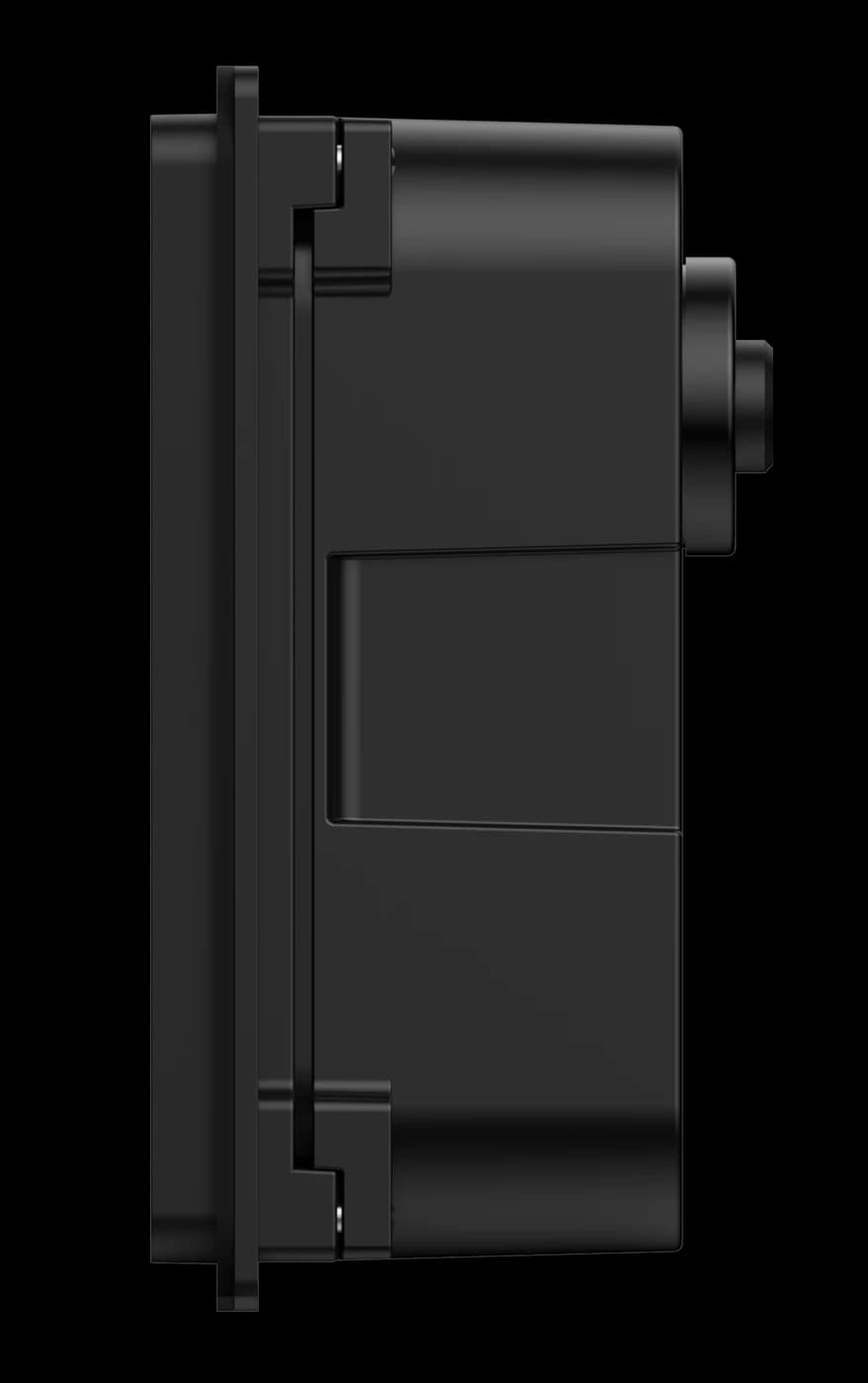
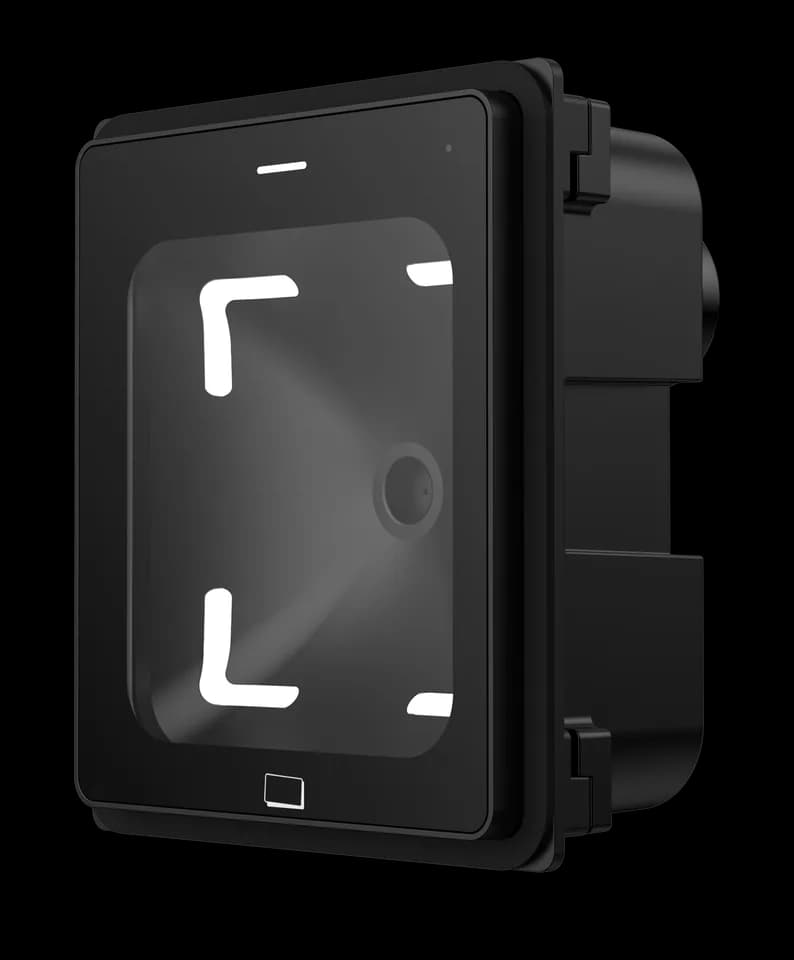
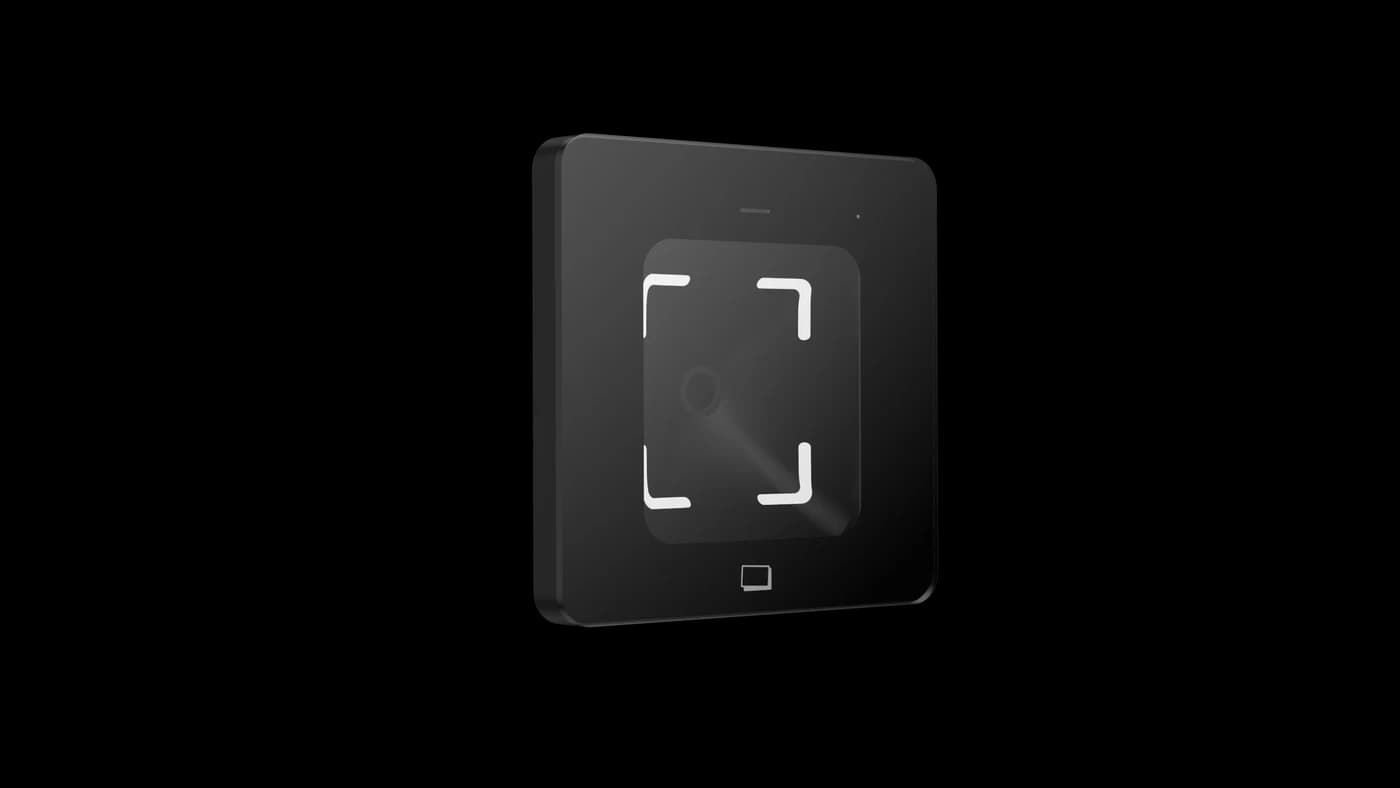
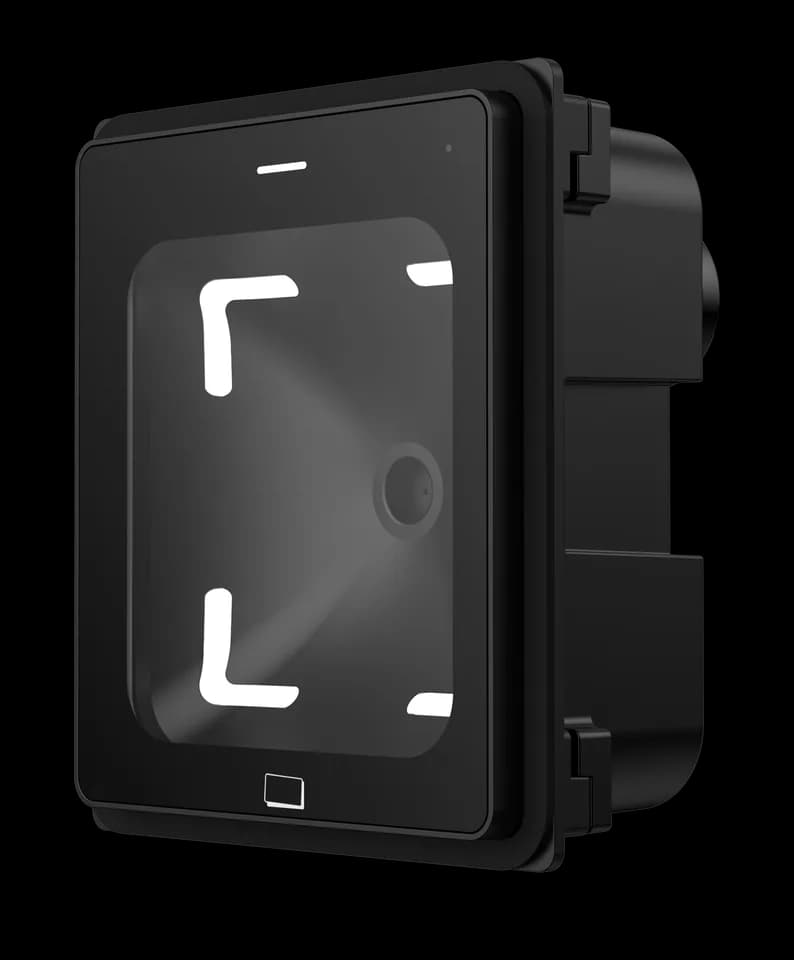
A compact QR reader for integration into equipment and access projects. Its front, side and rear views help you plan the installation opening and cable space.

  • QR reader
  • Equipment integration
Installation
Equipment panelPlan the opening and fixing points together
Interaction
QR inputCredential data for your host application
Clearance
Front + rearAllow space for presentation, cables and service

Inside FC8134

Design the equipment around the scan.

FC8134 brings a QR reading point into equipment and access projects. The visible window is only part of the installation: the body, fixings and cable connection need space inside the enclosure. Use the front, side and rear views to discuss the assembly with your equipment designer.

Plan the installation
FC8134 reader side profile showing the enclosure and mounting points
FC8134 · side profile; request the dimension drawing for your configuration

Choose around your project

The details that
make it fit.

01

Prepare the panel drawing

Mark the proposed reading position, panel thickness, opening and fixing points. Confirm them against the model-specific drawing before cutting; a product photograph is not a dimension template.

02

Reserve rear space

Allow room for the reader body, connector, cable bend and service access. Review the rear view with the equipment layout so other parts do not obstruct the assembly.

03

Define what receives the data

Identify the host controller or application and confirm the required output, power supply and firmware. The reader captures the code; the equipment software determines whether to admit the user or continue the service.

From credential to action

How the parts
work together.

Embedded installation does not define an output protocol. Confirm the electrical connection and data exchange for FC8134 rather than assuming another FC813x reader is interchangeable.

  1. 01

    Read at the panel

    The user presents a QR credential at the equipment’s reading window.

  2. 02

    Deliver the data

    The configured connection transfers the decoded content to the receiving host.

  3. 03

    Continue the equipment task

    The host validates the content and decides the next action. Test both accepted and rejected credentials before closing the enclosure.

Example workflow · confirm the configuration and wiring for the supplied equipment.

Installation & connections

Plan the fit.

  1. Request the FC8134 dimension drawing before cutting the panel. Confirm the opening, panel thickness and fixing points with the equipment designer.
  2. Reserve rear clearance for the reader body, connector and cable bend. Keep a service route to the fixings and connection after the equipment is assembled.
  3. With power disconnected, match the supply, harness and host interface to the selected FC8134 configuration. A related model’s connector drawing is not a substitute.
  4. Test representative QR credentials in the finished panel position, including accepted and rejected results in the host application, before closing the enclosure.

Product resources

Manuals & drawings.

Documents for FC8134 →

Need the FC8134 manual, specification or installation drawing? We’ll help you find the document for your configuration.

Request documents

A few things worth knowing.

Can I cut an FC8134 panel opening from the product image?

Use the model-specific dimension drawing, not the photograph, to prepare the panel. Confirm the opening, panel thickness and fixing positions, plus rear clearance for the body, connector and cable bend. Request the FC8134 drawing with your host and configuration details.

Why can output differ from the original QR content?

A reader in transparent output mode may send the original content, while a protocol or development mode can add a header, length, device information and check data. Select the mode that matches the host application and use the protocol reference for that model and firmware.

What should we check when a reader does not react to a code?

First confirm that the reader has started normally and that the code is complete, correctly generated and presented within the usable reading area. For codes shown on a phone, raise the screen brightness and remove glare; if known-good codes still produce no response, record the indicator and buzzer behavior for support.

Your next step

Let’s put FC8134
in your project.

Tell us where it will be used, how it should connect and the quantity you need.

Discuss your project