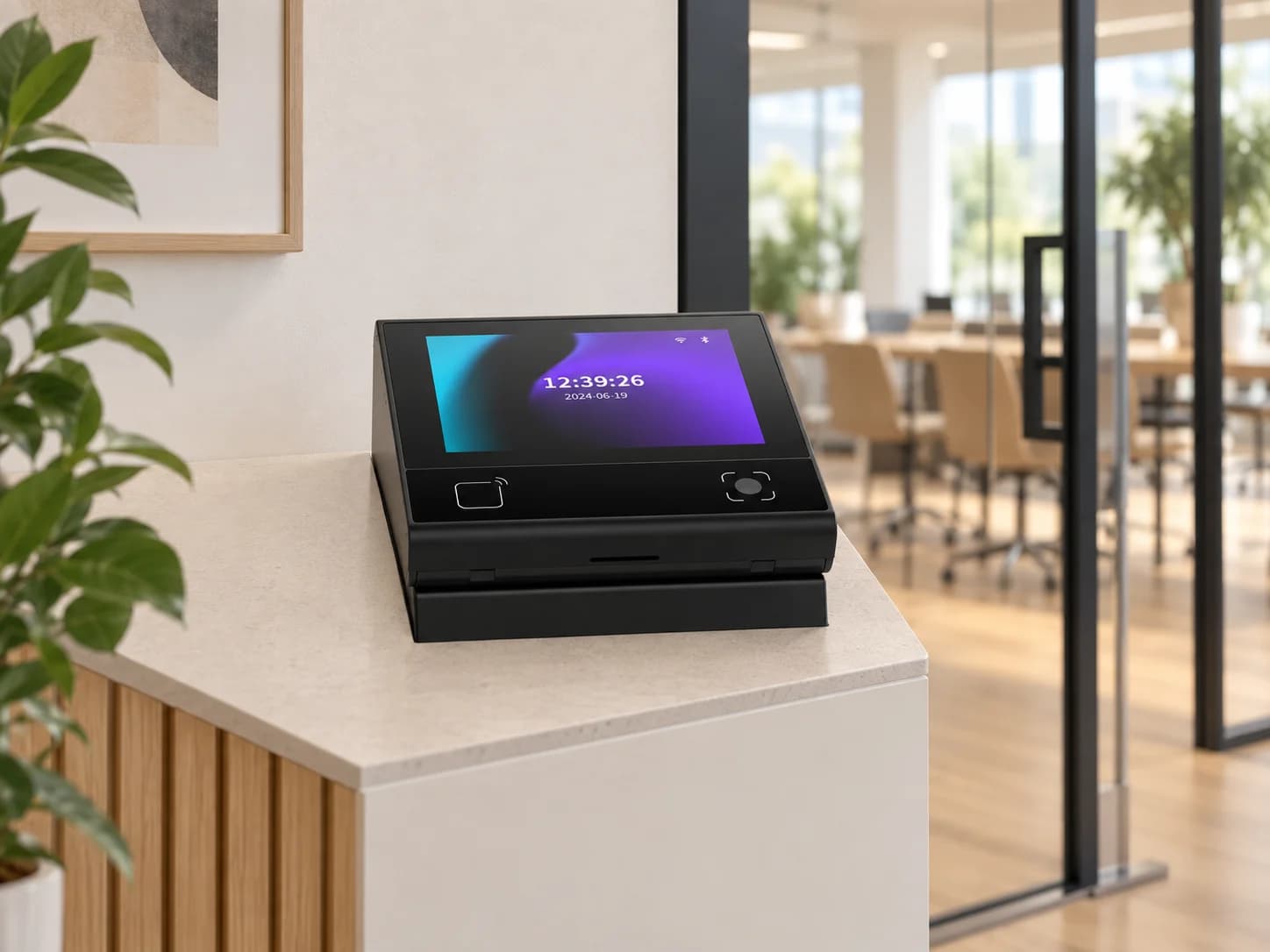
Give the workflow a screen.
FC6820 combines a display with QR and card options.


From a meeting-room door to connected equipment. Find the form that fits your workflow.
Find your modelA display for guided interactions. A compact reader for the door. An embedded module for your equipment.
FC6820 combines a display with QR and card options.
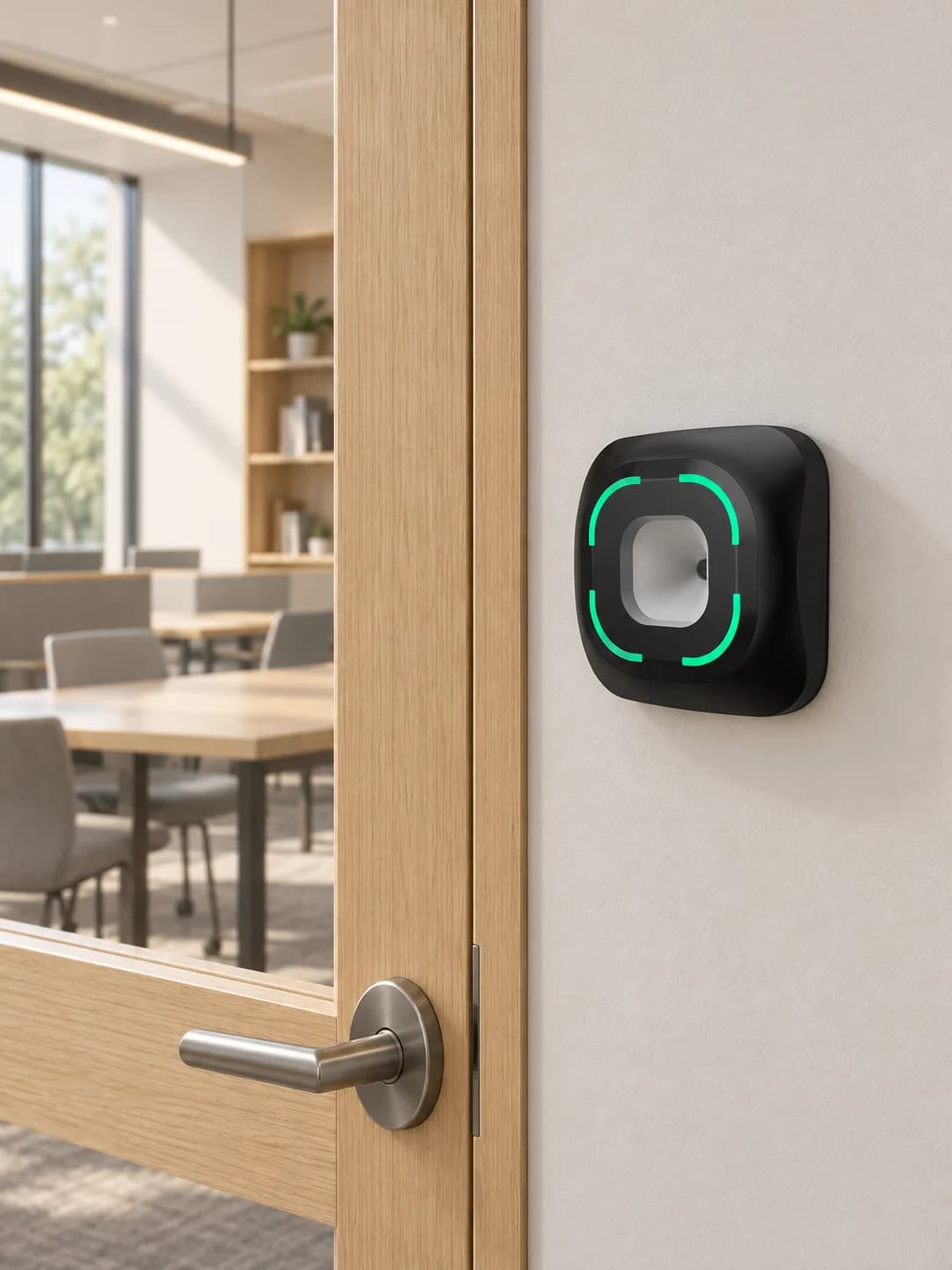
FC7780 for QR and NFC credential reading.
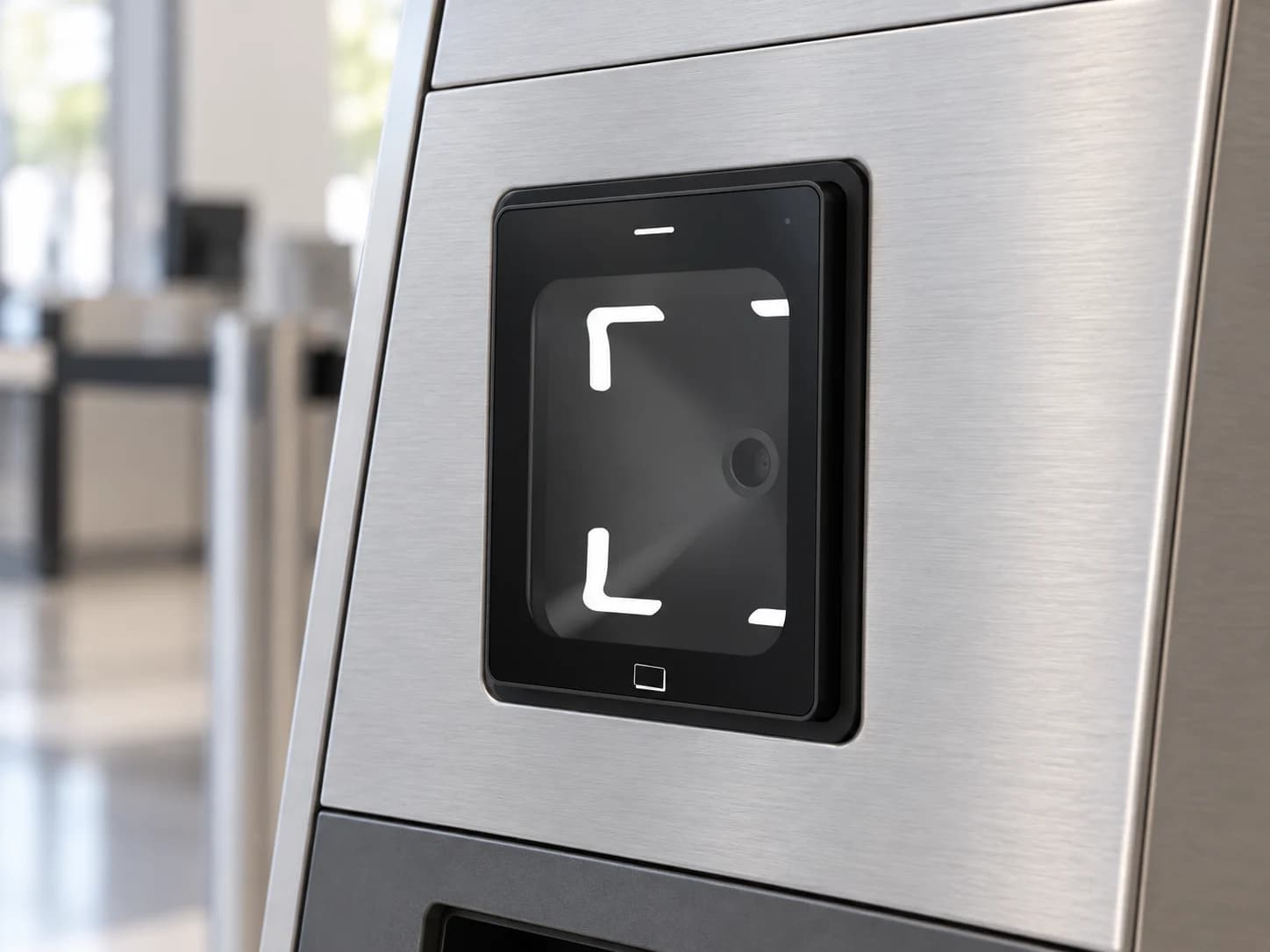
FC8135 fits embedded reader applications. Confirm the opening and host interface for your project.
Field photographs of FC7780 at a shared study-room entrance and FC7788 at a shared meeting room.
Explore solutions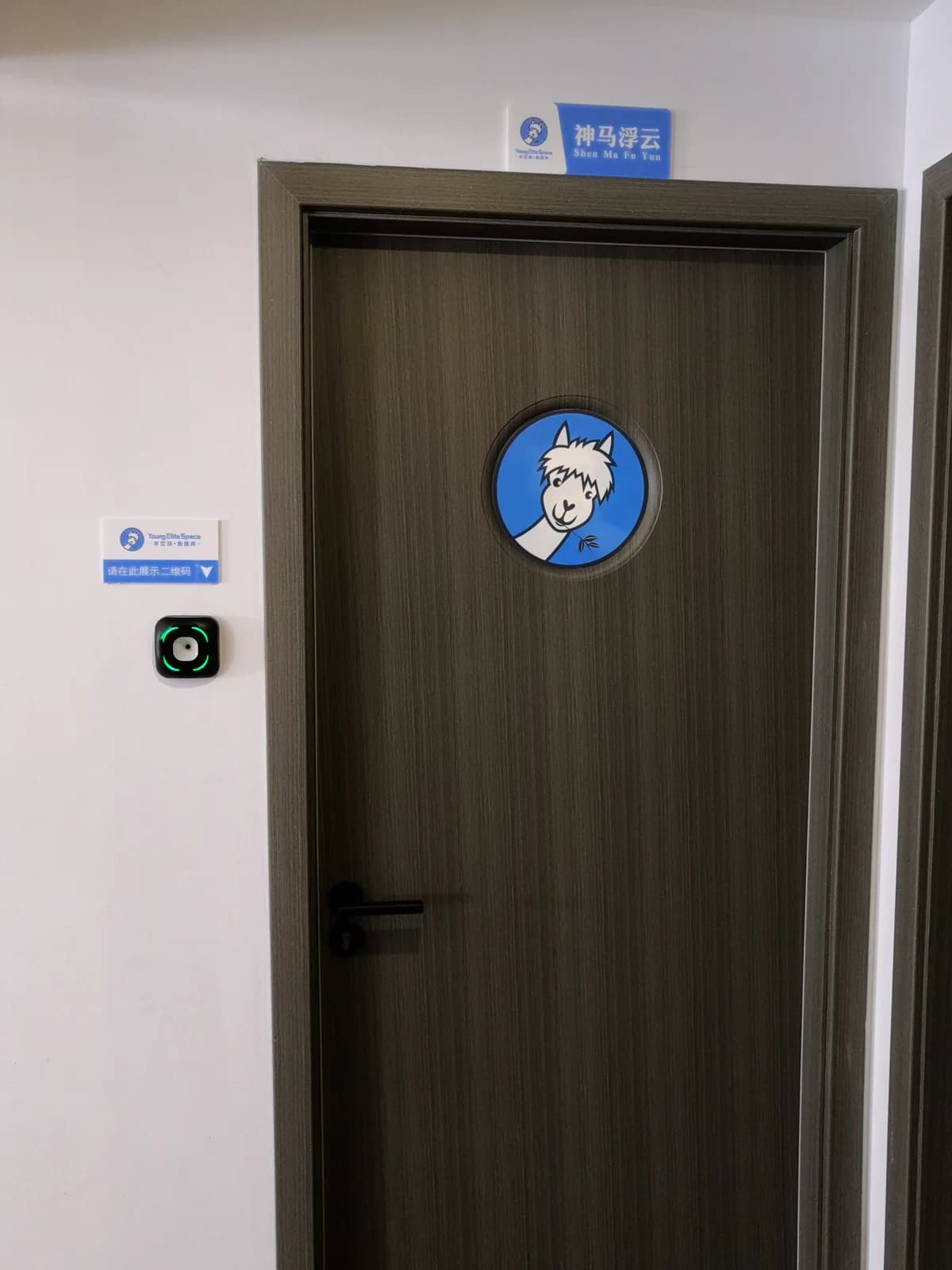
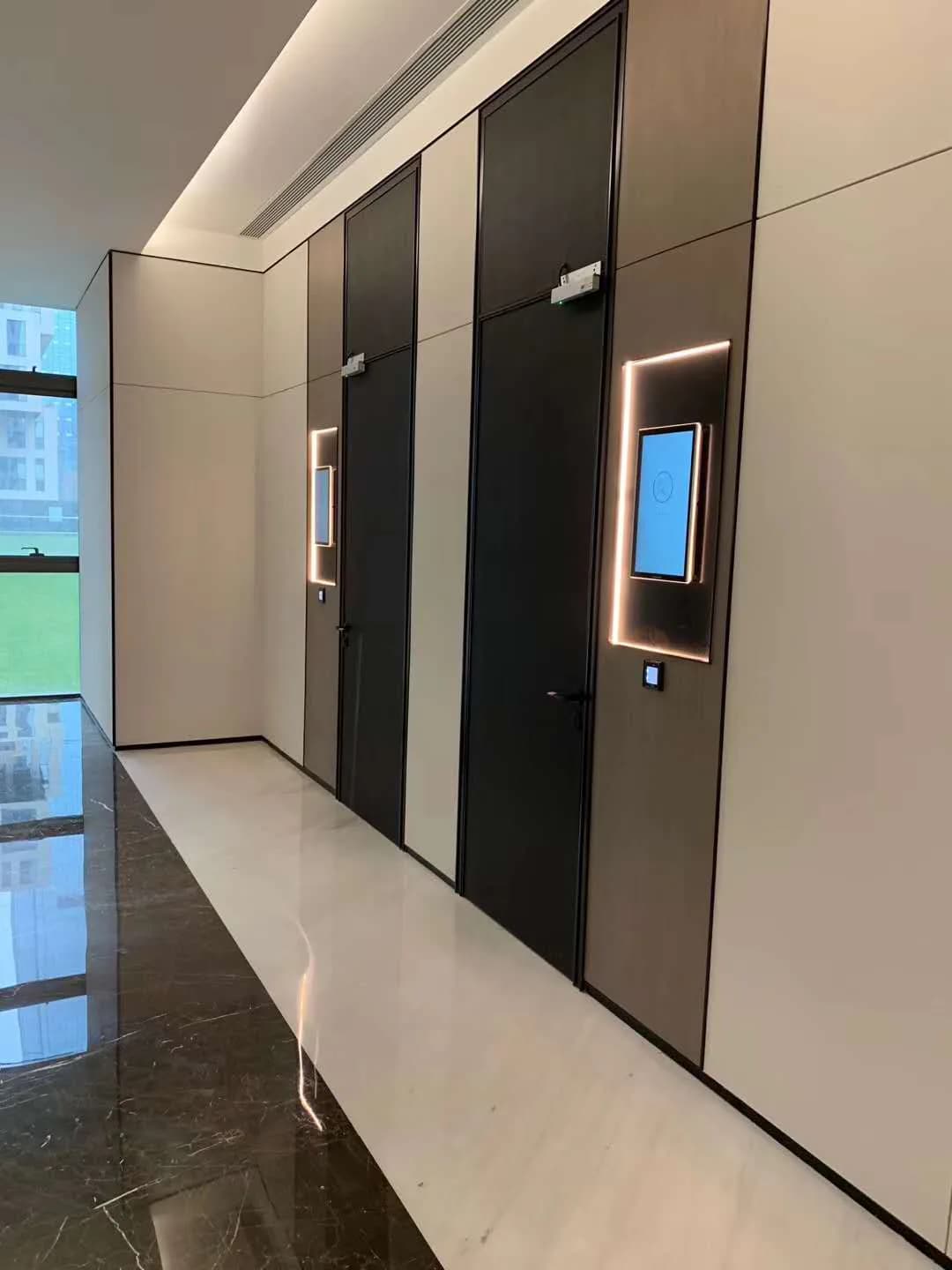
AI-generated application scenes illustrate possible settings, not customer installations or installation specifications. The two field photographs above show actual deployment environments.
Start with the physical format, then confirm code source, credential mix, host interface and mounting.
| Model | Display | Core use | Credentials | Interface / mounting |
|---|---|---|---|---|
| FC6820 | 3.33-inch touch display | QR and card access with an on-device interaction point | QR code, password and card options by configuration | 86-box surface mounting; Ethernet, RS485, Bluetooth and optional Wi-Fi |
| FC6822 | 3.33-inch touch display | Integrated QR and card input for flush-mounted installations | QR code, password and card options by configuration | Flush mounting; Ethernet, RS485, Bluetooth and optional Wi-Fi |
| FC6825 | Compact touch display | QR and card workflows that need clear on-device feedback | QR code and card options by configuration | Installation and host interfaces are selected for the project |
| FC7735 | No display | Compact QR input at doors and connected equipment | QR code and optional NFC card | 86-box mounting; Ethernet, Wiegand, RS485 and relay options |
| FC8135 | No display | QR input integrated into gates, kiosks and equipment | QR code and optional NFC card | Embedded mounting; Ethernet, Wiegand and relay options |
| FC7785 | No display | Narrow-format QR and card access points | QR code and card options by configuration | Wall or 86-box installation depending on configuration |
| FC7780 | No display | Door and shared-space credential reading | QR code and NFC card | 86-box mounting; Ethernet, RS485, Wiegand and relay options |
| FC7788 | No display | Integrated QR input for meeting rooms and connected spaces | QR code and NFC card | Flush 86-box mounting; USB, RS232, RS485, Wiegand, Wi-Fi and Ethernet options |
Match the baud rate, data format and electrical interface on both sides, then inspect the cable and any serial-to-USB adapter. Also confirm whether the reader is sending raw content or a framed protocol message before treating additional bytes as corrupted data.
A reader in transparent output mode may send the original content, while a protocol or development mode can add a header, length, device information and check data. Select the mode that matches the host application and use the protocol reference for that model and firmware.
Yes. Single-read and interval modes can treat repeated presentation of the same code differently, while a different code may still be accepted immediately. Confirm which modes and repeat intervals are available for the selected reader before defining the user flow.
Do not assume so. Reader firmware and access-control firmware can use different tools, configuration codes or platform commands. Share the overseas model, firmware and intended operating mode so the matching method can be checked before changing settings.
First confirm that the reader has started normally and that the code is complete, correctly generated and presented within the usable reading area. For codes shown on a phone, raise the screen brightness and remove glare; if known-good codes still produce no response, record the indicator and buzzer behavior for support.
Not necessarily. Identity enrollment and access permission are separate steps in many systems. Confirm that the person, credential, target device, schedule and permission group have been linked and that the authorization was delivered successfully.
No. A device can have local network access without maintaining its platform or messaging connection. Check the physical network, IP settings and service connection separately, using the indicators or logs available for the selected system.
Compare the RS485 wiring, polarity, grounding and communication settings with the instructions for both devices. Then confirm the reader output mode and controller input configuration; a correct cable cannot compensate for mismatched communication settings.
Configuration, compatibility and delivery scope are confirmed for your project.
Allow Google Analytics to help us understand traffic sources, page visits, submitted inquiries, document clicks, email-link clicks and visits to Alibaba or WhatsApp. We do not send your name, email or inquiry message to Analytics.
Analytics stays off until you allow it. Your choice does not affect inquiries or videos you choose to play. You can change it here at any time.
Current choice: not selected.
Read the website privacy notice